How to Stop IPTV Buffering: The Definitive Network & Device Troubleshooting Guide
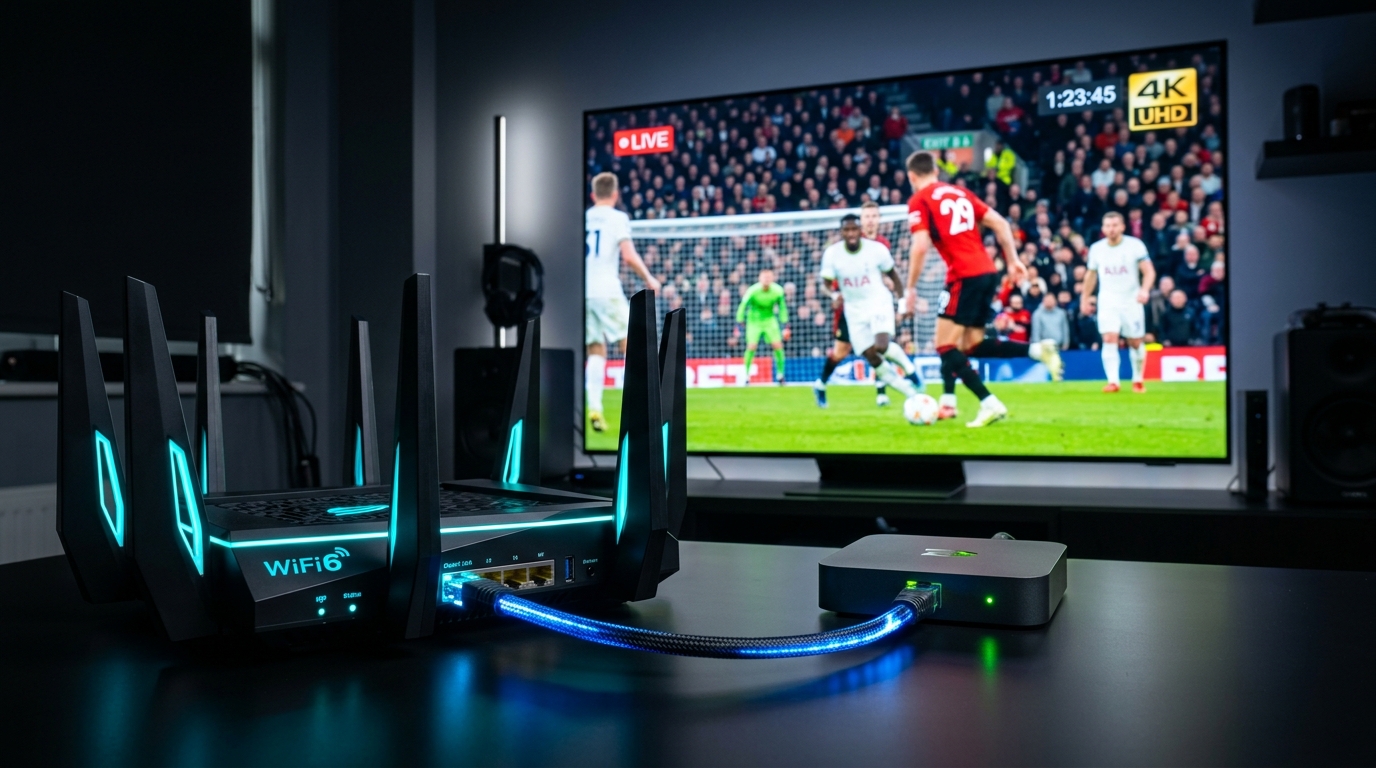
Nothing disrupts an evening of live entertainment more abruptly than a spinning loading circle appearing in the 89th minute of a crucial football match or during the climax of a cinematic blockbuster. When streaming high-bitrate television across TereaTV's global network, subscribers expect instantaneous channel zapping, crystal-clear 4K resolution, and rock-solid playback stability. Yet across the broader streaming ecosystem, buffering remains the single most prevalent consumer complaint.
Buffering is widely misunderstood. When a stream pauses and spins, mainstream consumers instinctively blame their broadband internet package or presume the television provider's servers are overloaded. While server capacity can occasionally be a factor in low-tier restreaming services, diagnostic data compiled across millions of streaming hours reveals that more than 85 percent of persistent IPTV buffering events originate in local network bottlenecks, domestic Wi-Fi radio contention, router bufferbloat, ISP video packet filtering, MTU fragmentation, or misconfigured client-side playback decoders.
Whether you stream using an Amazon Fire TV Stick, an Nvidia Shield TV Pro, an Apple TV 4K, a Formuler set-top box, or a Smart TV, applying systematic network engineering eliminates playback pauses permanently. This comprehensive technical guide breaks down the physical architecture of video buffers, presents a rapid isolation triage protocol, and delivers sixteen actionable engineering solutions to stop IPTV buffering forever.
1. Deconstructing the Buffer: How Internet Television Actually Works
To permanently eliminate buffering, you must first demystify what a buffer actually is. In digital media playback, a buffer is not an abstract delay; it is a physical circular data queue reserved in your streaming device's random-access memory (RAM).
PHYSICAL RAM RING BUFFER IN MEDIA PLAYER:
[Network Packets Arrive] ──> [High Watermark (Buffer Full: 5s)] ──> [Decoded by VPU] ──> [Display Screen]
                                           │
                                  [Playback Threshold (3s)]
                                           │
                             [Low Watermark (Buffer Empty: 0s)] ──> [BUFFERING SPINNER ACTIVATES!]
The Low Watermark and Buffer Underrun
When you launch a live stream on TereaTV, your media player (such as TiviMate, IPTV Smarters, or iPlayTV) initializes an empty memory space in RAM:
- Pre-Buffering Phase: The player queries the server, receives the initial video chunks, and fills the memory queue until it crosses a designated start threshold (typically 2 to 3 seconds of video data).
- Steady-State Playback: As the player renders frames onto your display screen at 50 or 60 frames per second, it simultaneously pulls new data packets across your internet connection to keep the buffer replenished.
- Buffer Underrun: If incoming network data packets are delayed, dropped, or arrive out of sequence, the consumption rate of the display exceeds the arrival rate of the network. The buffer memory steadily drains until it hits the Low Watermark (0.0 seconds of cached data). At this exact microsecond, the video engine freezes, and the application displays a loading spinner while it waits for memory to refill.
Why Raw Internet Speed Tests Are Deceptive
The most common refrain from frustrated streamers is: "My internet speed test shows 500 Mbps, so why is my IPTV buffering?"
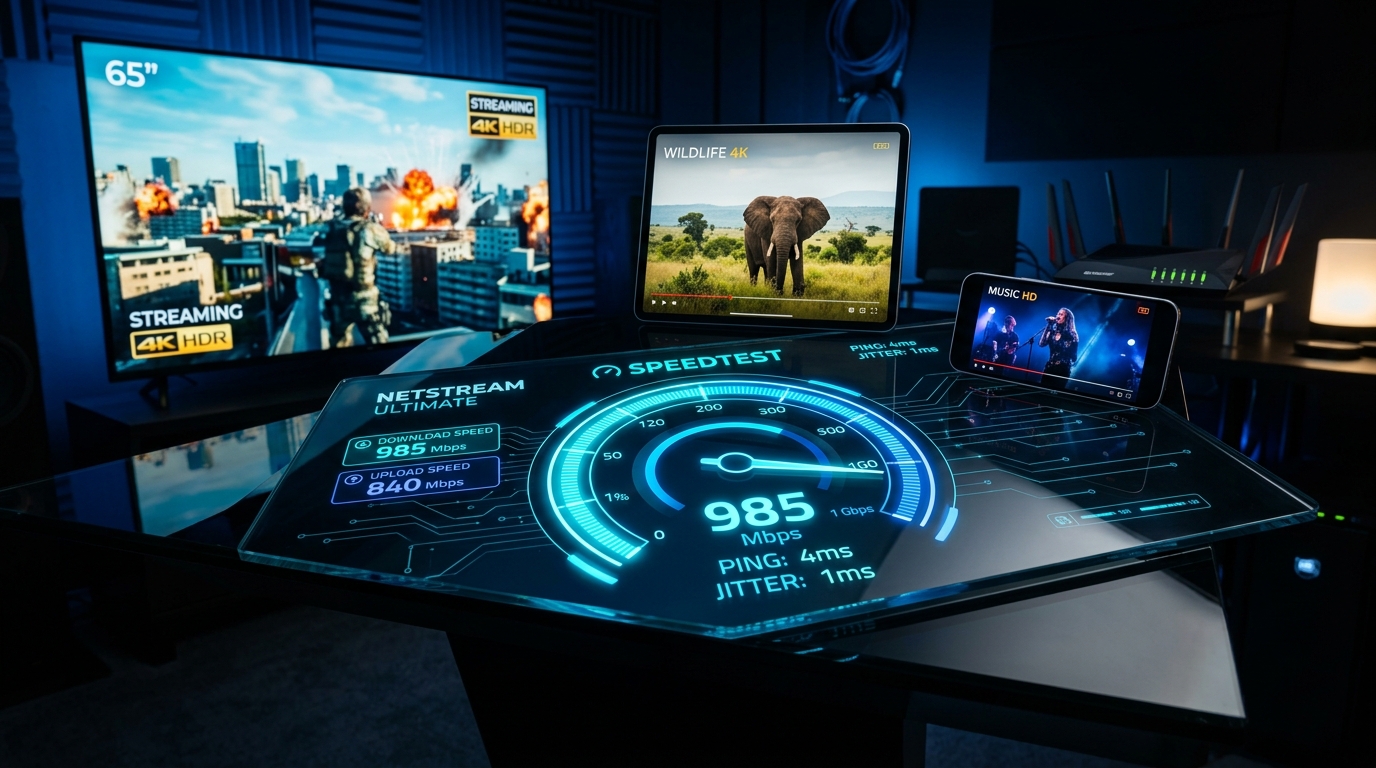
Standard web speed tests (such as Speedtest.net) measure burst bulk throughput. They establish multiple parallel TCP threads, download synthetic data chunks over a short 10-second burst, and report the peak bandwidth achieved.
Live television streaming does not operate as a burst file download. It is a continuous, real-time, single-threaded data stream. A connection boasting 500 Mbps of burst bandwidth but suffering from 15 milliseconds of jitter and 2 percent intermittent packet loss will suffer constant, violent buffering during a 25 Mbps 4K live broadcast. Conversely, a modest 40 Mbps connection with 0 percent packet loss and a rock-solid 2 milliseconds of jitter will stream high-bitrate 4K sports continuously for twelve hours without a single dropped frame.
2. The Diagnostic Triage Protocol: Isolating the Failure Domain
Before adjusting settings across your router or streaming stick, you must systematically isolate which tier of the delivery chain is responsible for stream interruptions.
DIAGNOSTIC ISOLATION FLOWCHART:
                            [Stream Buffers & Freezes]
                                        │
                    ┌───────────────────┴───────────────────┐
                    ▼                                       ▼
       [Universal Across All Feeds]               [Only One Channel Buffers]
                    │                                       │
        Isolate Failure Domain:                    Upstream Source Issue:
        1. Test Secondary Device (Phone on 5G)     - Broadcaster Transmit Error
        2. Check Ethernet vs Wi-Fi                 - Select Backup Feed in Playlist
        3. Audit Router Bufferbloat                - Report to TereaTV 24/7 Desk
        4. Test VPN for ISP Throttling
Step 1: The Multi-Device Isolation Test
When buffering strikes your living room television, execute this rapid test:
- Open the identical stream on a secondary device—such as your smartphone or tablet—connected to the same home Wi-Fi network.
- If the phone plays smoothly while the television stutters, the root cause is local to your television setup: an underpowered streaming stick, thermal throttling, a weak Wi-Fi antenna behind the TV chassis, or an overloaded media player cache.
- If both devices freeze identically, disconnect your smartphone from home Wi-Fi and switch to cellular mobile data (4G/5G) using our mobile setup guide.
- Result A: If the stream plays flawlessly over cellular data, your domestic home network or your residential ISP is actively throttling or dropping video packets.
- Result B: If the stream stutters identically across mobile data and home broadband, the issue is an upstream broadcast source anomaly.
Step 2: Diagnostic Ping, Jitter, and Packet Loss Telemetry
Using a computer or a network analysis app (such as Analiti or PingTools) on your streaming device, execute a 100-packet ICMP ping test to a reliable public host (such as 1.1.1.1 or 8.8.8.8):
| Diagnostic Metric | Healthy Streaming Threshold | Problematic Threshold | Severe Failure Threshold | Impact on Live IPTV Streaming |
|---|---|---|---|---|
| Ping Latency (RTT) | < 25 milliseconds | 50 – 90 milliseconds | > 120 milliseconds | Slower channel zapping, delayed handshakes |
| Network Jitter | < 3 milliseconds | 8 – 15 milliseconds | > 20 milliseconds | Rapid buffer underrun, frequent micro-stutters |
| Packet Loss Rate | 0.0% Absolute Zero | 0.5% – 1.5% | > 2.0% | Catastrophic stream collapse, macro-blocking |
In live digital television, any packet loss greater than 0.5 percent will cause noticeable stream stuttering. Because live UDP/TCP video streams cannot wait for missing packets to be retransmitted without introducing massive lag, lost packets result in corrupted video frames or instantaneous buffer depletion.
3. Network Infrastructure Remediation: Eliminating the Root Causes
Method 1: Banish Wireless Instability with Full-Duplex Cat6 Ethernet
Wi-Fi is inherently an unguided radio medium subject to physical attenuation, multipath interference, and half-duplex contention. When your streaming device communicates over Wi-Fi, it must compete for wireless spectrum with every smartphone, tablet, smart speaker, and neighboring Wi-Fi network in physical proximity.
WIRELESS INTERFERENCE VULNERABILITY:
[Router] ~~~~(2.4GHz / 5GHz Radio Waves)~~~~> [Walls / Furniture / Bluetooth] ~~~~> [TV Stick Behind TV]
                                                     ▲
                                        (Severe Packet Jitter & Loss!)

HARDWIRED CAT6 ETHERNET:
[Router] ═══════════════(Shielded Twisted Pair Copper)═══════════════> [Streaming Box]
                                (Zero Jitter, Zero Interference, 1000 Mbps Full Duplex!)
- Direct Cat6 Cabling: Run a dedicated Cat6 or Cat7 patch cable from your router directly to your streaming device. Physical copper cabling operates in full-duplex mode (transmitting and receiving simultaneously), eliminates radio packet loss, and delivers rock-solid sub-2ms jitter.
- OTG Gigabit Adapters for Amazon Firesticks and Chromecasts: Compact streaming sticks lack RJ45 Ethernet ports. Avoid cheap 10/100 Mbps micro-USB adapters that throttle speeds below 90 Mbps. Instead, utilize a Micro-USB OTG (On-The-Go) Y-Cable paired with a USB 3.0 Gigabit Ethernet adapter featuring an ASIX AX88179 or Realtek RTL8153 chipset. This setup unlocks throughput exceeding 350 Mbps, providing massive bandwidth headroom for 4K sports.
- If Ethernet Is Physically Impossible: If running a physical cable through your home is unfeasible, deploy Powerline Ethernet adapters (HomePlug AV2 / G.hn standard) or a dedicated Wi-Fi 6 Mesh system with a dedicated 5GHz wireless backhaul channel, placing a satellite node directly beside your streaming setup and connecting the streaming box to the satellite node via a short Ethernet patch lead.
Method 2: Eliminate Router Bufferbloat with Smart Queue Management (SQM)
Bufferbloat is the hidden culprit behind high-speed broadband buffering. When a network connection is subjected to concurrent domestic activity—such as a family member downloading a large game update, uploading high-resolution video files, or making video conference calls—unmanaged routers store excess packets in oversized internal memory queues.
This queue artificially balloons network round-trip latency from 15 milliseconds up to 400 to 800 milliseconds. When ping times spike this violently, incoming IPTV video packets are delayed, the player's RAM buffer runs dry, and the stream abruptly freezes.
BUFFERBLOAT SCENARIO (Unmanaged Router Queue):
[IPTV Video Stream: 20 Mbps] ──┐
                               ├──> [Oversized FIFO Hardware Buffer] ──> Spikes Ping to 650ms!
[Steam Game Download: 250 Mbps] ┘             │
                                              ▼
                                 [Live Stream Starves & Freezes!]

SMART QUEUE MANAGEMENT (SQM - CAKE / FQ_CODEL):
[IPTV Video Stream] ──> [Interactive High-Priority Queue] ──> Pristine 12ms Playback!
[Game Download]     ──> [Bulk Low-Priority Flow]          ──> Speed Dynamically Managed!
- Diagnose Bufferbloat: Run an online Bufferbloat test (e.g., Waveform Bufferbloat Test). If your bufferbloat grade is C, D, or F, your router is choking live video streams whenever network traffic occurs.
- Deploy Smart Queue Management: Log into your router's administrative gateway (e.g.,
192.168.1.1). Navigate toQoSorTraffic Managementand enable Smart Queue Management (SQM) using the CAKE or fq_codel algorithm. - Set Traffic Caps: Configure SQM bandwidth limits to approximately 90 to 95 percent of your ISP's true download and upload speeds. This small buffer prevents your router's physical hardware buffers from ever filling, locking latency under load to less than 10 milliseconds regardless of household activity.
Method 3: Bypass ISP Video Throttling with WireGuard Encryption
During major televised sporting events (such as Premier League football, Champions League clashes, or Super Bowl broadcasts), major residential Internet Service Providers deploy automated Deep Packet Inspection (DPI) appliances across their regional networks. These systems monitor traffic signatures, recognize high-bitrate video streaming protocols, and dynamically throttle connection bandwidth to prevent regional exchange congestion.
If your broadband speed test shows 400 Mbps but your 4K sports channels on TereaTV begin buffering precisely at kickoff, your internet provider is actively shaping your video traffic.
ISP TRAFFIC SHAPING:
[IPTV Traffic Packets] ──> [ISP Gateway (DPI Engine)] ──> [Throttled to 3 Mbps] ──> [Freezing!]

WIREGUARD ENCRYPTED TUNNEL:
[Encrypted Bitstream]  ──> [ISP Gateway (Opaque UDP)]  ──> [Full 400 Mbps Throughput Maintained!]
Deploying a trusted VPN utilizing the cutting-edge WireGuard protocol neutralizes ISP traffic management:
- DPI Invalidation: WireGuard wraps every video packet inside robust ChaCha20 encryption. The ISP's automated inspection engines cannot read packet headers or identify video streaming protocols, preventing targeted throttling.
- Direct Transit Peering: Premium VPN providers operate dedicated 10-Gigabit Tier-1 transit backbones. Routing through an optimized VPN server frequently bypasses congested public ISP peering nodes, providing a cleaner, lower-jitter pathway to TereaTV's streaming servers.
- Avoid Outdated OpenVPN: Never run legacy OpenVPN protocols on compact streaming sticks like the Firestick. OpenVPN's heavy cryptographic overhead overloads low-power mobile CPUs, inducing dropped frames. WireGuard is exceptionally lightweight, running in kernel space with virtually zero CPU performance penalty.
Method 4: Transition to Ultra-Low-Latency Public DNS Resolvers
When your media player launches a channel or refreshes an Electronic Program Guide (EPG), it queries Domain Name System (DNS) servers to resolve hostnames into numerical IP addresses. Default ISP-assigned DNS servers are notoriously sluggish, prone to downtime, and frequently configured to intercept or delay streaming lookups during live broadcasts.
Switching your router or streaming device to ultra-fast, independent public Anycast DNS infrastructure accelerates playlist loading, channel zapping, and guide population:
- Cloudflare DNS (Fastest Global Resolution):
- Primary IPv4:
1.1.1.1 - Secondary IPv4:
1.0.0.1
- Primary IPv4:
- Google Public DNS (High Redundancy):
- Primary IPv4:
8.8.8.8 - Secondary IPv4:
8.8.4.4
- Primary IPv4:
- Quad9 DNS (Security & Anti-Spoofing):
- Primary IPv4:
9.9.9.9 - Secondary IPv4:
149.112.112.112
- Primary IPv4:
Apply these addresses directly within your home router's WAN or DHCP settings so every connected device inherits the optimized DNS resolvers automatically.
Method 5: Calibrate MTU (Maximum Transmission Unit) Size
The Maximum Transmission Unit (MTU) dictates the maximum size (in bytes) of a single data packet that can traverse your network without being fragmented. The standard Ethernet MTU is 1500 bytes.
However, when video packets travel through PPPoE broadband connections or encrypted VPN tunnels (which add packet header overhead), an MTU set too high forces routers along the path to fragment packets into smaller chunks. Packet fragmentation dramatically increases CPU processing overhead, elevates packet drop rates, and triggers frequent micro-buffering on live streams.
PACKET FRAGMENTATION DEFECT:
[1500 Byte Video Packet] ──> [PPPoE / VPN Overhead (Requires 1420 Max)]
                                           │
                                           ▼
[Packet Split into 2 Fragments: P1 (1420B) + P2 (80B)] ──> Doubles Latency & Packet Loss Risk!
- Find Your Optimal MTU: On a Windows PC connected to your router, open Command Prompt and execute:
ping 1.1.1.1 -f -l 1472 - If the test reports "Packet needs to be fragmented but DF set," lower the packet size by 10 bytes (e.g., 1462, 1452) and re-test until you find the largest packet size that passes without fragmentation.
- Add 28 bytes (for IP and ICMP headers) to that number to determine your optimal MTU.
- For standard connections utilizing a VPN, setting your router or VPN client MTU manually to 1420 or 1400 bytes universally prevents packet fragmentation across all IPTV streams.
Method 6: Disable IPv6 on Domestic Networks
While IPv6 is the modern internet protocol standard designed to replace IPv4, its real-world implementation across domestic residential ISPs remains inconsistent. Many consumer routers suffer from broken IPv6 routing tables, incomplete peering handshakes, and sluggish fallback mechanisms (Happy Eyeballs protocol).
When an IPTV client attempts to connect to a streaming CDN edge node over an unoptimized IPv6 route, connection timeouts and 10-second channel loading pauses frequently occur.
Actionable Optimization: Log into your router or your streaming device's network settings and toggle IPv6 to OFF. Forcing your hardware to route exclusively over mature, optimized IPv4 routing tables frequently cures stubborn, inexplicable buffering instantly.
4. Device Hardware & Media Player Optimization
Method 7: Calibrate Media Player Buffer Size Settings
Media players like TiviMate, IPTV Smarters Pro, OTT Navigator, and iMPlayer allow users to customize internal memory buffer sizes. Setting this parameter requires striking an engineering balance between network stability and device memory limits.
BUFFER SIZE TRADEOFF MATRIX:
[None / Very Small (0s)]  ◄─── Minimal Channel Zapping Delay (1s) | Vulnerable to Any Jitter (Buffering!)
[Medium / Normal (3s)]    ◄─── THE GOLDEN SWEET SPOT: Absorbs Jitter | Snappy Channel Zapping (2s)
[Very Large / Max (10s+)] ◄─── Immune to Micro-Jitter | Sluggish Zapping (10s) | OOM App Crashes!
- The Fallacy of "Maximum Buffer": Many struggling users configure their buffer size to "Large" or "Maximum" (10+ seconds) hoping to eliminate freezes. On budget devices with only 1 GB or 1.5 GB of RAM (such as the standard Fire TV Stick), allocating massive buffers consumes critical memory, inducing Out-of-Memory (OOM) operating system kills and crashing the IPTV app to the home screen.
- The Ideal Calibration: Configure your player's buffer size to Medium (or Normal, roughly 3,000 milliseconds). On TereaTV's low-latency streaming infrastructure, a 3-second buffer provides optimal headroom to absorb domestic network jitter while preserving rapid channel changes.
Method 8: Silicon Hardware Decoding Engines (HW vs. SW vs. HW+)
Within application settings, verify that your media player utilizes Hardware Video Decoding (HW) rather than Software Video Decoding (SW):
- Hardware Decoding (HW / HW+): Directs the compressed H.264/H.265 video bitstream directly into your streaming device's specialized Video Processing Unit (VPU) silicon. The VPU decompresses 4K 60FPS video at near-zero CPU load, keeping temperatures low and frame rendering liquid-smooth.
- Software Decoding (SW): Forces general-purpose CPU cores to decompress video mathematically in code. Mobile streaming processors lack the raw clock speed to calculate millions of pixels 60 times per second, resulting in 100 percent CPU utilization, severe thermal throttling, dropped frames, and stream freezes.
- Actionable Step: In TiviMate (
Settings->Playback) or IPTV Smarters (Settings->Player Selection), verify that Hardware or Hardware+ is selected as the global default for both Live Streams and VOD.
Method 9: Clear Media Player Cache and Prevent Flash Storage Exhaustion
Modern IPTV players download and cache thousands of high-resolution Electronic Program Guide (EPG) channel logos, show descriptions, and Video on Demand movie posters into internal flash storage.
When internal flash memory drops below 800 Megabytes, operating system read/write performance throttles dramatically. The media player struggles to write temporary video chunk files, triggering playback pauses and UI sluggishness.
- Clear Application Cache Weekly:
- On Fire OS: Navigate to
Settings->Applications->Manage Installed Applications-> Select your IPTV player -> Click Clear Cache (never click "Clear Data" unless you want to reset your login credentials). - On Android TV / Google TV: Navigate to
Settings->Apps-> Select your player -> Click Clear Cache.
- On Fire OS: Navigate to
- Maintain 1.5 GB Free Internal Storage: Uninstall unused streaming apps, utility tools, and games from your streaming stick to ensure the operating system maintains ample free space for high-speed swap memory.
Method 10: Mitigate Silicon Thermal Throttling on HDMI Sticks
Compact streaming sticks are engineered without active cooling fans. Packed into miniature plastic housings plugged directly against the hot rear panel of an operating television, internal silicon temperatures routinely surge past 85°C (185°F) after 45 minutes of intensive 4K decoding.
When silicon hits its thermal ceiling, internal safety circuits trigger thermal throttling—halving processor clock speeds to prevent physical damage. The device can no longer decode 60 frames per second, causing the stream to degrade into severe stuttering and continuous buffering.
- Use an HDMI Extender Cable: Never plug a streaming dongle directly into the back of your TV. Always utilize a 6-inch or 1-foot HDMI extension lead to suspend the device in open, circulating ambient air.
- Clean Dust from Enclosures: Ensure ventilation slots on set-top boxes (like the Formuler or Nvidia Shield) are free of dust.
- External Heatsinks: Affixing an inexpensive miniature aluminum or copper heatsink to the exterior casing of an Amazon Firestick can reduce operating temperatures by 15°C, permanently preventing thermal clock throttling.
Method 11: Terminate Background Zombie Processes
When you exit a streaming app on Android TV or Fire OS by pressing the remote control's "Home" button, the application does not shut down. It remains paused in system RAM. As multiple applications accumulate in memory, background processes fight for CPU cycles and memory bandwidth.
- Install a Task Manager: Deploy trusted utility applications like Background Apps and Processes List on Firestick or Android TV.
- Force-Close Idle Apps: Prior to starting an important live sports match on TereaTV, force-close all background applications (YouTube, Netflix, web browsers) to allocate 100 percent of device RAM and CPU throughput to your IPTV player.
Method 12: Stream Transport Containers: MPEG-TS vs. HLS (.m3u8)
Digital television streams are primarily packaged in two transport container formats:
- MPEG-TS (.ts): The classic broadcast standard. Operates with near-zero latency and minimal server overhead. However, MPEG-TS packets are unsegmented and highly vulnerable to packet loss over unstable Wi-Fi connections.
- HLS (.m3u8 - HTTP Live Streaming): Apple's segmented streaming protocol. HLS splits streams into distinct 2-to-6 second media files transmitted over standard HTTP. If a packet is lost, the player seamlessly re-requests the segment. HLS is substantially more resilient on wireless networks and mobile devices.
Actionable Tip: If your connection experiences intermittent micro-freezing under MPEG-TS, open your media player's playlist settings (or use your Xtream Codes connection parameters) and change the output stream format from MPEG-TS to HLS (m3u8).
5. Playlist & Database Architecture Optimization
Method 13: Transition from Monolithic M3U Files to Xtream Codes API
Many users still connect to IPTV services by manually pasting a massive M3U playlist URL containing 200,000 lines of text.
Loading a giant 200 MB raw text file into a budget streaming stick forces the CPU to parse hundreds of thousands of lines of text sequentially every time the app launches, consuming hundreds of megabytes of operational RAM and inducing severe memory crashes.
- Connect via Xtream Codes API: Always configure your TereaTV subscription using Xtream Codes API credentials (Server URL, Username, and Password).
- Database Query Advantage: Xtream Codes connects directly to database endpoints, loading only the specific categories and channels you request. This reduces application memory footprint by over 80 percent, leaving your streaming stick's RAM entirely dedicated to video playback buffers.
Method 14: Trim Unneeded Channel Bouquets
Subscribing to an expansive global service like TereaTV provides access to over 50,000 live channels and 200,000 VOD movies. However, parsing an unfiltered global catalog chokes low-powered streaming devices.
- Access your media player's channel management menu.
- Hide international language bouquets and categories you never watch (e.g., if you only watch US, UK, and European sports, hide the dozens of regional foreign packages).
- Maintaining a focused, curated playlist of 5,000 to 10,000 active channels accelerates guide loading, eliminates memory exhaustion, and prevents application buffering. Review our structured channel directory to identify your preferred bouquets.
Method 15: Optimize Electronic Program Guide (EPG) Refresh Frequency
Constantly refreshing the Electronic Program Guide consumes massive network bandwidth and CPU cycles. If your media player attempts to parse a 7-day global XMLTV program guide while you are watching a 4K sports match, the background parsing process will steal CPU cycles from the video decoder, inducing playback freezes.
- Configure EPG update frequency to Once every 24 or 48 hours.
- Turn OFF the "Update EPG on app launch" toggle.
- Enable "Store EPG in RAM" or store it on an external USB flash drive if your device supports expandable storage.
6. Comprehensive Troubleshooting Matrix
Use this quick-reference engineering matrix to match specific buffering symptoms with proven solutions:
| Buffering Manifestation | Root Cause | Level 1 Immediate Action | Level 2 Advanced Remediation |
|---|---|---|---|
| Freezes every 5–10 seconds continuously | Buffer underrun caused by wireless packet jitter | Connect device via Cat6 Ethernet cable | Increase media player buffer size to Medium (3s) |
| Smooth for 40 mins, then constant stuttering | Silicon thermal throttling inside streaming stick | Attach HDMI extension cable to suspend stick | Apply miniature aluminum heatsink to stick chassis |
| Buffers only during major live sports events | ISP Deep Packet Inspection (DPI) bandwidth throttling | Connect via WireGuard protocol VPN | Switch to alternative backup sports feed in playlist |
| App crashes to home screen after buffering | RAM memory exhaustion / Out-of-Memory (OOM) | Clear application cache; reboot device | Migrate from M3U playlist to Xtream Codes API |
| High speedtest (500Mbps) but constant freezing | Severe router bufferbloat under household load | Enable SQM (CAKE / fq_codel) on router | Cap router bandwidth at 90% of maximum speed |
| Channel takes 15 seconds to start playing | Sluggish DNS resolution or oversized buffer | Configure Cloudflare Anycast DNS (1.1.1.1) | Disable IPv6 in router network settings |
| Macro-blocking, pixelation, and artifacts | Severe network packet loss (> 1.0%) | Replace damaged Ethernet cables; test line | Switch stream format container from TS to HLS |
| Audio continues playing while video freezes | Hardware video decoder crash or CPU starvation | Switch decoder engine from Software to Hardware (HW) | Force-close background apps; free up system RAM |
7. Platform-Specific Optimization Walkthroughs
Apply these tailored platform configurations across your hardware:
Amazon Fire TV Stick 4K Max & Fire TV Cube
- Navigate to
Settings->My Fire TV->About->Check for Updates(ensure Fire OS is current). - Go to
Settings->Preferences->Privacy Settings-> Turn Device Usage Data and Collect App Usage Data to OFF (frees background CPU cycles). - Under
Data Monitoring, toggle Data Monitoring to OFF. - In your IPTV player (e.g., TiviMate), set Video Decoder to Hardware, Buffer Size to Medium, and enable Auto Frame Rate (AFR).
Nvidia Shield TV Pro & Android TV Boxes
- Navigate to
Settings->Device Preferences->System->Processor mode-> Set to Max performance. - Under
Cooling mode, select Cool (keeps active fan spinning at higher RPM to prevent thermal throttling). - Connect directly via Gigabit Ethernet. In router settings, assign a static DHCP IP reservation to the Shield.
- In TiviMate, under
Playback, select Hardware decoder and configure Audio Passthrough if using an external soundbar.
Apple TV 4K
- Open tvOS
Settings->Video and Audio->Match Content-> Enable both Match Dynamic Range and Match Frame Rate. - Under
Audio Output, ensure format is set to Auto. - In media players like iPlayTV or TiviMax, utilize the Apple Native AVPlayer rendering engine for hardware-accelerated H.265 playback.
Smart TVs (Samsung Tizen & LG webOS)
- Delete unused factory pre-installed applications to free up internal storage.
- Disconnect from 2.4 GHz Wi-Fi and connect via a wired Ethernet cable or a dedicated 5 GHz Wi-Fi band positioned within 15 feet of the router.
- In television picture settings, turn off Auto Motion Plus / TruMotion and enable Game Mode or Filmmaker Mode to reduce display input lag and frame queue processing overhead.
8. Frequently Asked Questions (FAQ)
Why does my IPTV buffer on Wi-Fi even though YouTube and Netflix stream in 4K without issues?
On-demand platforms like YouTube and Netflix function fundamentally differently from live IPTV broadcasts. When you watch a movie on Netflix, the application aggressively downloads and pre-buffers several minutes of video in the background. If your home Wi-Fi experiences a 10-second radio interference drop, Netflix simply plays from its deep pre-loaded buffer without you ever noticing. Live linear television cannot pre-buffer the future; it is captured, encoded, and broadcast in real time with a tiny 3-second delay. Any momentary wireless packet drop immediately empties the live buffer, resulting in an instant freeze. Transitioning your streaming device to hardwired Ethernet eliminates wireless packet drops permanently.
Does a VPN always stop buffering?
A VPN stops buffering if and only if your buffering is caused by ISP Deep Packet Inspection, bandwidth throttling, or congested domestic ISP routing exchanges. By encrypting your data with WireGuard, the VPN bypasses ISP throttling filters and routes your stream over high-speed transit backbones. However, if your buffering is caused by an underpowered streaming stick, thermal throttling, router bufferbloat, or an overloaded home Wi-Fi channel, a VPN will not resolve the issue and may introduce minor cryptographic latency. Follow our triage protocol to identify your specific failure domain before deploying a VPN.
What is the ideal buffer size setting in TiviMate?
For the vast majority of broadband connections streaming on TereaTV's anti-freeze network, the optimal buffer size setting in TiviMate is Medium (or Normal). This allocates approximately 2.5 to 4 seconds of video in RAM. It provides ample headroom to absorb typical network micro-jitter while maintaining fast 1-second channel changes. Avoid setting the buffer to "Large" on Firesticks or budget Android boxes, as excessive memory allocation triggers Out-of-Memory application crashes.
Why do channels freeze for a few seconds every time I zap between channels?
A momentary 1-to-2 second pause when switching channels is entirely normal. During channel zapping, your media player must tear down the previous network socket, negotiate a new TLS handshake with the streaming server, locate an I-frame (keyframe) in the new video elementary stream, fill its local RAM buffer threshold, and initialize the hardware VPU decoder. You can accelerate channel zapping times by configuring Cloudflare DNS (1.1.1.1), connecting via Cat6 Ethernet, and utilizing Xtream Codes API connections instead of monolithic M3U files.
9. Conclusion: The Path to Buffer-Free Streaming with TereaTV
Persistent IPTV buffering is not an unavoidable reality of internet television. It is a measurable, solvable network engineering symptom with identifiable root causes.
By systematically migrating from congested Wi-Fi to full-duplex Cat6 Ethernet, eliminating router bufferbloat via Smart Queue Management (SQM), engaging WireGuard encryption to bypass ISP video throttling, setting media players to native hardware VPU decoding, preventing device thermal throttling, and pruning bloated channel playlists, you establish an unshakeable digital pipeline capable of delivering flawless 4K entertainment.
Once your domestic network and hardware playback environment are optimized, pairing your setup with a true enterprise-tier service guarantees total peace of mind. TereaTV's broadcast infrastructure is engineered from the ground up for high-demand streaming. Powered by multi-redundant Tier-1 transit connections, automated Anycast load-balancing, and distributed anti-freeze edge CDN servers, TereaTV delivers over 50,000 live channels and 200,000 VOD assets with 99.9% uptime.
Select your IPTV subscription package today, explore our comprehensive channel lineup, or reach out to our 24/7 technical team for personalized network diagnostic assistance.