How to Optimize IPTV Video Quality: The Definitive 4K Streaming & Performance Guide
Achieving flawless, broadcast-grade television playback on an internet-delivered stream demands a granular understanding of how digitized audiovisual data travels from server clusters into your television's display panel. While mainstream consumers often presume that video sharpness is solely a byproduct of broadband speed or display resolution, veteran streaming engineers recognize that pristine video reproduction is governed by an interdependent chain of digital signal processing: source feed bitrates, codec compression profiles, network transport protocols, client-side decoder pipelines, display frame-rate synchronization, and panel color calibrations.
When an IPTV stream exhibits macro-blocking, micro-stutters, color banding, or frame drops during a crucial live sports match or high-budget film, the breakdown rarely stems from an inexplicable glitch. In more than 90 percent of domestic streaming environments, degraded playback originates in local network jitter, misconfigured media player decoders, HDMI timing mismatches, thermal throttling on budget streaming sticks, or aggressive ISP video traffic filtering.
Whether your primary viewing device is an enterprise set-top box like the Nvidia Shield TV Pro, an Apple TV 4K, an Amazon Fire TV Stick, an Android TV television, or a mobile tablet, applying systematic calibration techniques transforms an unstable, pixelated feed into a pristine 4K 60FPS broadcast. This comprehensive technical guide details eighteen proven engineering methodologies to maximize picture clarity, eliminate playback anomalies, and unlock the full visual potential of your TereaTV subscription.
1. The Physics and Architecture of IPTV Video Delivery
To diagnose and resolve visual degradation, one must first dismantle common misconceptions regarding digital video transmission. Traditional linear television relies on dedicated coaxial cables or satellite transponders that allocate guaranteed physical radio frequency bandwidth to each channel. Conversely, Internet Protocol Television transmits video as variable bitstream packets across shared TCP/IP or UDP networks, requiring client devices to dynamically reconstruct, decode, and render frames in real time.
BROADCAST PIPELINE:
[Satellite/Fiber Uplink] ──> [Hardware Encoders (H.265/AV1)] ──> [Origin Server]
      │
      ▼
[Global Edge CDN (Anycast Routing)] ──> [Domestic ISP Backbone] ──> [Home Router]
      │
      ▼
[Local Connection (Cat6 Ethernet / 5GHz Wi-Fi)] ──> [Client Media Player (VPU Decoding)]
      │
      ▼
[HDMI 2.1 Interface (Frame Rate Match)] ──> [OLED / QLED Display Panel (Zero Post-Processing)]
Bitrate vs. Resolution: The Science Behind Picture Sharpness
The single most widespread misconception among streaming viewers is equating resolution with image fidelity. Resolution defines nothing more than the physical pixel grid of the canvas—1920×1080 pixels for Full High Definition (FHD), or 3840×2160 pixels for 4K Ultra High Definition (UHD). However, resolution without sufficient data density produces hollow pixels.
The actual determinant of visual sharpness, color accuracy, and motion fluidity is bitrate, measured in megabits per second (Mbps). Bitrate dictates how much compressed digital data is allocated to describe the visual information occurring in each second of footage.
| Video Profile | Resolution (Pixels) | Native Framerate | Optimal Codec | Broadcast Bitrate (Low Tier) | Broadcast Bitrate (TereaTV High Tier) | Visual Artifacts of Inadequate Bitrate |
|---|---|---|---|---|---|---|
| Standard HD | 1280×720 | 25 / 30 FPS | H.264 (AVC) | 1.5 – 2.5 Mbps | 4.0 – 6.0 Mbps | Blurry player jersey numbers, muddy grass |
| Full HD Entertainment | 1920×1080 | 25 / 30 FPS | H.264 / H.265 | 3.0 – 4.5 Mbps | 8.0 – 12.0 Mbps | Macro-blocking in shadows, facial smudging |
| Full HD Sports (60FPS) | 1920×1080 | 50 / 60 FPS | H.265 (HEVC) | 5.0 – 7.0 Mbps | 12.0 – 16.0 Mbps | Ball judder, trail ghosting, motion tear |
| 4K Ultra HD Movies | 3840×2160 | 24 FPS | H.265 / AV1 | 10.0 – 14.0 Mbps | 22.0 – 35.0 Mbps | Posterization in night scenes, washed-out HDR |
| 4K Ultra HD Live Sports | 3840×2160 | 50 / 60 FPS | H.265 (HEVC) | 15.0 – 18.0 Mbps | 30.0 – 50.0 Mbps | Stuttering pans, digital noise around athletes |
Consider an analogy: a heavily compressed 4K sports feed operating at a meager 6 Mbps over an overloaded server squeezes eight million pixels into a pipeline too narrow to support them. The encoder is forced to aggressively discard high-frequency visual details, yielding blotchy grass, visible macro-blocks during fast camera pans, and noisy halos around moving players.
Conversely, an uncompressed, high-bitrate 1080p stream broadcast at 14 Mbps with a native 60 frames per second framerate on TereaTV's live sports channels delivers razor-sharp contrast, flawless motion coherence, and crisp fine lines that consistently outperform counterfeit, starved 4K feeds.
Video Compression Standards: H.264, H.265 (HEVC), and AV1
Digital video files in their raw, uncompressed state are gargantuan; an uncompressed 4K 60FPS video stream consumes upwards of 12 Gigabits per second, which would overwhelm any domestic internet connection. To make delivery feasible across consumer networks, specialized algorithms known as codecs compress this data by analyzing spatial redundancy (repetition within a single frame) and temporal redundancy (elements that remain unchanged across consecutive frames).
- H.264 / MPEG-4 AVC (Advanced Video Coding): Developed in the early 2000s, H.264 remains the most universally compatible codec on earth. Almost every silicon chip manufactured in the past fifteen years features native hardware decoding for H.264. However, its compression efficiency is relatively low by modern standards. Transmitting high-bitrate 4K content over H.264 requires colossal bandwidth that frequently leads to network congestion.
- H.265 / HEVC (High Efficiency Video Coding): The modern bedrock of broadcast-grade IPTV engineering. HEVC employs variable-size Coding Tree Units (CTUs) ranging up to 64×64 pixels (compared to H.264's fixed 16×16 macroblocks). This mathematical advance delivers roughly 50 percent greater data compression than H.264 at identical perceptual visual quality. HEVC enables true 4K sports streaming with rich 10-bit color spaces without requiring industrial-grade internet lines.
- AV1 (AOMedia Video 1): The state-of-the-art royalty-free open-source codec developed by the Alliance for Open Media (including Google, Apple, Netflix, and Amazon). AV1 yields an additional 20 to 30 percent compression efficiency advantage over HEVC. While AV1 represents the future of internet streaming, its complex mathematical transforms require specialized hardware decoders. Older streaming devices lack AV1 silicon blocks, forcing devices to attempt software CPU decoding which induces catastrophic thermal throttling and dropped frames.
Framerates Demystified: 25/30 FPS vs. Native 50/60 FPS Sports
In cinematic content, movies are intentionally photographed at 24 frames per second to produce a gentle, artistic motion blur that human eyes associate with storytelling. However, live sports broadcasting operates under completely opposing physics. Fast-moving footballs, tennis serves, pucks, and high-speed motorsport racing demand high temporal resolution.
- 25 / 30 FPS Streams: Low-tier IPTV restreamers frequently downscale broadcasts to 25 or 30 frames per second to conserve server bandwidth. At 30 FPS, an image refreshes only once every 33.3 milliseconds. When a camera pans across a stadium, the pitch and crowd appear to stutter, jitter, and vibrate—a condition known as stroboscopic judder. Fast-moving balls visibly blink in and out of existence across the screen.
- 50 / 60 FPS Streams: Premium IPTV infrastructures broadcast sports in native 50 FPS (European PAL standard) or 60 FPS (North American NTSC standard). At 60 FPS, frames refresh every 16.6 milliseconds. Moving athletes retain razor-sharp silhouettes, camera sweeps remain glass-smooth, and viewing fatigue drops to zero. Ensuring your player hardware matches and renders 50/60 FPS feeds is non-negotiable for high-tier sports viewing.
2. Diagnostic Foundation: Isolating Stream Degradation
Before altering configurations across your television and network hardware, you must systematically diagnose which tier of the streaming pipeline is responsible for visual imperfections. Implementing random adjustments without diagnostic clarity often introduces secondary latency issues.
DIAGNOSTIC TRIAGE PROTOCOL:
                     [Video Issue Detected]
                               │
               ┌───────────────┴───────────────┐
               ▼                               ▼
    [Single Channel Flaw]            [Universal Across All Feeds]
               │                               │
        Upstream Source               Check Local Environment:
       Provider Encoding              - Wi-Fi Radio Interference
    (Switch to Backup Feed)           - Player Hardware Decoder
                                      - Buffer Underrun / Bufferbloat
                                      - Display Judder (3:2 Pulldown)
The Multi-Channel Cross-Category Test
When you notice pixelation or stutter on a specific channel, execute the following isolation procedure:
- Switch Categories Immediately: Move from the struggling channel (e.g., a UK Premier League 4K channel) to three unrelated categories: a US news broadcast, a French cinema stream, and a live entertainment feed from our channel catalog.
- Evaluate the Result:
- Scenario A: If only the single sports channel stutters while all other categories stream with instantaneous channel changes and pristine sharpness, the problem is an isolated upstream broadcast uplink anomaly. The appropriate solution is selecting an alternative backup feed within the playlist or reporting the channel to TereaTV's 24/7 technical team.
- Scenario B: If every channel across every category exhibits pixelation, buffering, or micro-stutters, the bottleneck resides squarely within your local playback environment: home Wi-Fi interference, player decoder misconfiguration, ISP packet shaping, or streaming stick thermal exhaustion.
Activating Real-Time Player Diagnostics (Nerd Stats)
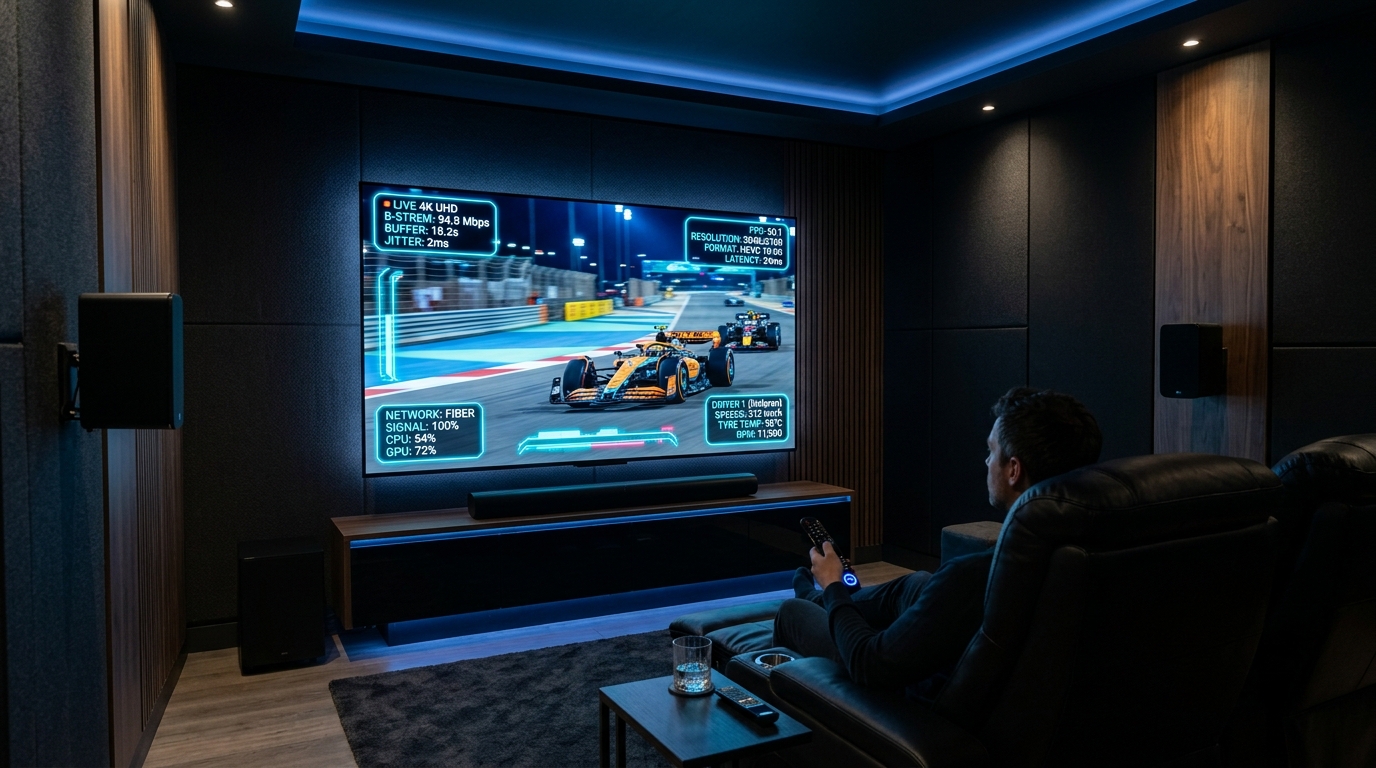
Professional media players such as TiviMate, IPTV Smarters Pro, and iMPlayer feature built-in diagnostic overlays that reveal live stream telemetry. Enabling these overlays provides real-time mathematical proof of playback health:
- Decoded Bitrate: Displays the incoming bandwidth consumption in real time. If a 4K feed suddenly drops from 28 Mbps down to 1.8 Mbps, your local connection is choking or your ISP is actively throttling the video stream.
- Dropped Frames Counter: In a healthy stream, dropped frames should remain at zero. If the counter ticks upward rapidly while incoming bitrate is steady, your streaming device's graphics processor (VPU) is failing to decode frames quickly enough.
- Buffer Health (Seconds): Shows the reserve buffer stored in local RAM. If this buffer continuously depletes to 0.0 seconds before refilling, network latency jitter is starving the media player.
3. Network Infrastructure Optimization: Building an Unshakeable Pipeline
Digital television data packets cannot tolerate erratic delivery. While a file download or web page can wait two seconds for delayed packets to arrive, a live 60 FPS video stream must continuously render an uncorrupted image every 16.6 milliseconds.
Method 1: Banish Wireless Instability with Hardwired Ethernet
Wi-Fi is fundamentally a half-duplex radio medium. Unlike full-duplex Ethernet cables that can transmit and receive data simultaneously without collision, Wi-Fi devices must continuously negotiate airtime with neighboring smartphones, laptops, smart lightbulbs, and microwave ovens. Even on a top-tier Wi-Fi 6 router, wireless packet jitter (fluctuating arrival times) wreaks havoc on live streaming buffers.
- Direct Cat6 Cabling: Connect an RJ45 Cat6 or Cat7 twisted-pair Ethernet cable directly from your router or managed switch to your streaming box. Wired Ethernet delivers symmetrical full-duplex data transfer, zero environmental radio interference, and near-zero jitter (under 2ms).
- OTG Gigabit Ethernet Adapters for Streaming Sticks: Popular streaming dongles like the Amazon Fire TV Stick 4K Max or Google Chromecast with Google TV lack native Ethernet jacks. Many users mistakenly purchase cheap 10/100 Mbps micro-USB adapters that cap throughput at roughly 90 Mbps. Instead, utilize an OTG (On-The-Go) Y-cable paired with a USB 3.0 Gigabit Ethernet adapter (ASIX AX88179 or Realtek RTL8153 chipset). This configuration unlocks real-world speeds exceeding 350 Mbps over local network buses, eliminating data bottlenecks for 4K streams.
Method 2: Eliminate Bufferbloat via Router Queue Management (SQM)
Bufferbloat is a pervasive, covert network defect that occurs when excessive buffering inside home routers causes latency to spike catastrophically under load. When another household member uploads a file, backs up photos to cloud storage, or streams high-resolution video, traditional routers queue excess packets in oversized hardware buffers.
This queue delays incoming IPTV video packets by hundreds of milliseconds, instantly emptying your streaming player's active buffer and inducing freezing—even on a 500 Mbps fiber internet plan.
BUFFERBLOAT SCENARIO:
[IPTV 4K Stream: 25 Mbps] ──┐
                            ├─> [Unmanaged Router Buffer (FIFO)] ──> Spikes Latency to 450ms!
[Cloud Backup: 100 Mbps] ───┘             │
                                          ▼
                             [Dropped Frames & Stream Freezes]

SMART QUEUE MANAGEMENT (SQM / CAKE):
[IPTV 4K Stream] ──> [High Priority Queue (Low Latency)] ────────> Pristine 12ms Playback!
[Cloud Backup]   ──> [Bulk Data Queue (Controlled Throttle)] ────> Zero Impact on TV!
- Test Your Network for Bufferbloat: Navigate to an authoritative bufferbloat diagnostic test (such as Waveform Bufferbloat Test) on a computer connected to your home network.
- Deploy Smart Queue Management (SQM): If your bufferbloat grade is C, D, or F, access your router's administrative gateway. Enable SQM (Smart Queue Management) utilizing the CAKE or fq_codel active queue management algorithms.
- Configure Bandwidth Limits: Set your router's download and upload bandwidth caps to 90–95 percent of your ISP's measured speed. This small 5 percent headroom prevents the router's physical hardware buffers from ever filling, capping round-trip latency spikes under 10 milliseconds regardless of household network activity.
Method 3: Configure Cloudflare or Google Public Anycast DNS
By default, domestic internet routers utilize the Domain Name System (DNS) servers provided by your Internet Service Provider. ISP DNS servers are frequently underpowered, heavily monitored, and prone to poor routing tables that direct your streaming queries through convoluted peering exchanges.
Furthermore, many domestic ISPs enforce regional DNS content filtering during major televised sporting events, intentionally slowing connection lookups for television streams.
Replacing your default ISP resolvers with ultra-low-latency public Anycast DNS infrastructure dramatically accelerates playlist loading speeds, Electronic Program Guide (EPG) populating, and channel zapping times:
- Cloudflare DNS (Primary & Secondary):
- IPv4:
1.1.1.1and1.0.0.1 - IPv6:
2606:4700:4700::1111and2606:4700:4700::1001
- IPv4:
- Google Public DNS (Primary & Secondary):
- IPv4:
8.8.8.8and8.8.4.4 - IPv6:
2001:4860:4860::8888and2001:4860:4860::8844
- IPv4:
Apply these DNS addresses directly within your home router's WAN or DHCP configuration page so that every connected streaming device inherits the optimized resolvers automatically. If router access is restricted, input static IP and DNS parameters directly into your streaming device's network settings menu.
Method 4: Bypass ISP Deep Packet Inspection with WireGuard
During high-profile sporting events such as Champions League football, Formula 1 races, or NFL Sunday games, major residential ISPs often deploy Deep Packet Inspection (DPI) appliances across their central exchanges. These appliances monitor traffic patterns, identify high-bitrate video streaming protocols, and dynamically throttle connection bandwidth down to unwatchable levels to protect overall network capacity.
If your internet speed tests show 300 Mbps but your 4K IPTV stream consistently drops frames during live football matches, ISP traffic shaping is almost certainly the culprit.
ISP THROTTLING SCENARIO:
[IPTV Video Packets] ──> [ISP Gateway (DPI Analyzer)] ──> [Throttled to 3 Mbps] ──> [Buffering!]

ENCRYPTED WIREGUARD TUNNEL:
[Encrypted Data Stream] ──> [ISP Gateway (Indistinguishable Noise)] ──> [Full 300 Mbps Speed Maintained!]
Deploying a high-speed VPN utilizing modern WireGuard protocol encryption wraps your video stream in unbreakable cryptographic layers:
- DPI Blindness: Because WireGuard encrypts both headers and payloads, the ISP's automated traffic management engines see only an opaque stream of randomized UDP packets, preventing protocol-specific bandwidth throttling.
- Optimized BGP Peering: Top-tier VPN providers maintain enterprise transit peering agreements. Routing your traffic through a high-bandwidth VPN server often bypasses congested domestic ISP routing nodes, providing a cleaner, lower-jitter path to TereaTV's global streaming clusters.
- Avoid Legacy Protocols: Never use legacy OpenVPN (TCP/UDP) on low-powered streaming sticks. OpenVPN relies on CPU-intensive cryptographic libraries that overload mobile processors. WireGuard runs lean in kernel space, consuming minimal CPU overhead while delivering near-line-rate gigabit throughput.
4. Media Player & Hardware Decoder Optimization
Even with a pristine 1-Gigabit fiber optic connection, visual playback will degrade if your client application is misconfigured. Digital video data packets must be decompressed, decoded into uncompressed raw pixel buffers, and transferred across system buses to the display engine.
Method 5: Select Hardware Accelerated Video Decoding
Within the settings menus of advanced IPTV applications—such as TiviMate, IPTV Smarters Pro, OTT Navigator, or XCIPTV—users are presented with choices between Hardware (HW) and Software (SW) video decoding engines.
DECODER ARCHITECTURE:
Software Decoding (SW):
[Video Stream] ──> [CPU (High Load, Heat, Dropped Frames)] ──> [Stuttering Display]

Hardware Decoding (HW / HW+):
[Video Stream] ──> [Dedicated Silicon VPU Block] ──> [Zero CPU Load, Perfect 60 FPS!]
- Software Decoding (SW): Relies on the streaming device's general-purpose CPU cores to compute video decompression algorithms mathematically in code. Because low-power mobile CPUs (like those found in Firesticks and Smart TVs) lack the clock speeds and SIMD instruction pipelines needed to calculate eight million pixels sixty times per second, the CPU instantly spikes to 100 percent utilization. The device overheats, the interface freezes, and frames drop rapidly.
- Hardware Decoding (HW / HW+): Bypasses the CPU entirely, routing the compressed video stream directly into a dedicated on-chip silicon coprocessor known as the Video Processing Unit (VPU). The VPU contains hardwired silicon microcircuits designed specifically to decompress H.264, H.265, and VP9 bitstreams at zero CPU load.
- Actionable Rule: Always select Hardware Decoding (HW) or Hardware+ as the global default for both Live TV and Video on Demand. Only revert to software decoding for a specific channel if an unusual legacy audio/video container fails to output sound or video under hardware decoding.
Method 6: Enable Auto Frame Rate (AFR) Matching to Eliminate Judder
Display panels refresh their physical screens at fixed temporal frequencies—typically 60Hz, 120Hz, or 50Hz (in Europe). Conversely, streaming media content is produced at varying native framerates:
- European broadcast television & sports: 50 FPS
- North American broadcast television & sports: 60 FPS
- Cinematic movies & prestige drama series: 23.976 / 24.0 FPS
When a 24 FPS movie or a 50 FPS European sports feed is forced to play on a streaming device locked to a rigid 60Hz display output, the device must duplicate frames unevenly to bridge the mathematical gap. For 24 FPS content, this results in 3:2 pulldown judder—a subtle, unnatural stuttering sensation visible during horizontal camera pans. For 50 FPS sports forced onto a 60Hz output, the mismatched timing induces periodic micro-skips and frame pacing tears.
FRAME RATE MISMATCH (50 FPS on 60Hz Screen without AFR):
Broadcast Frame: [F1]   [F2]   [F3]   [F4]   [F5]
Display Refresh: [60Hz] [60Hz] [60Hz] [60Hz] [60Hz] [60Hz]  <-- Micro-judder and stutter!

AUTO FRAME RATE MATCHING (AFR Enabled):
Broadcast Frame: [F1]   [F2]   [F3]   [F4]   [F5]
Display Refresh: [50Hz] [50Hz] [50Hz] [50Hz] [50Hz]         <-- Glass-smooth 1:1 cadence!
- Enable AFR in Media Player Settings: In TiviMate, navigate to
Settings->Playback->Auto frame rate (AFR)and toggle it ON. - Set Switch Mode: Select Fix resolution change and configure the trigger to activate on playback start.
- Operating System AFR: On devices like the Apple TV 4K, navigate to
Settings->Video and Audio->Match Contentand enable both Match Dynamic Range and Match Frame Rate. On Android TV 12+ devices, enableMatch content frame ratein the display settings. - Visual Result: When launching a 50 FPS football match from our sports channel lineup, your display panel will briefly re-sync its hardware refresh rate to exactly 50Hz, delivering glass-smooth motion matching native linear broadcast feeds.
Method 7: Calibrate Media Player Buffer Sizes
Every advanced IPTV media player incorporates an internal ring buffer in RAM that stores a few seconds of compressed video before decoding it. Calibrating this buffer requires balancing playback stability against stream latency.
- Buffer Too Small (None / Very Small): The player decodes packets almost instantaneously as they arrive from the network. While this minimizes channel zapping delay, any microsecond network hiccup or packet jitter immediately empties the buffer, triggering a spinning wheel and frame stutter.
- Buffer Too Large (High / Maximum - 10+ Seconds): An excessively large buffer consumes substantial system RAM. On devices with only 1 GB or 1.5 GB of RAM (such as budget Firesticks), allocating hundreds of megabytes to video buffers causes Out-of-Memory (OOM) errors, interface sluggishness, and application crashes. Furthermore, excessive buffering introduces substantial channel changing delays.
- The Golden Mean (Medium / Normal - 2.5 to 5 Seconds): For stable high-bitrate Full HD and 4K streaming on TereaTV's anti-freeze network, configure your player buffer size to Medium (or approximately 3,000 milliseconds). This provides ample headroom to absorb domestic network jitter while maintaining snappy 1-second channel transitions.
5. Television Panel Calibration: Displaying Raw Bitstreams Accurately
Many consumers invest in high-end OLED, Mini-LED, or QLED televisions, only to subject their video feeds to hyper-aggressive factory image processing that smudges detail, distorts colors, and introduces artificial latency. Modern television manufacturers ship displays with showroom picture modes designed to appear intensely bright on retail sales floors rather than accurate in a living room.
TELEVISION SIGNAL PATHWAY:
[Pristine 4K Feed from Streaming Box]
            │
            ▼
[TV Image Processor: Motion Smoothing, Noise Filters, Edge Enhancers] <-- RUINS PICTURE!
            │
            ▼
[Artificial "Soap Opera Effect", Washed Out Colors, Crushed Shadow Detail]

CORRECT CALIBRATED SIGNAL PATHWAY:
[Pristine 4K Feed from Streaming Box]
            │
            ▼
[TV in Filmmaker Mode / Game Mode (Bypasses All Synthetic Filters)]
            │
            ▼
[Razor-Sharp, Color-Accurate, Film-Grain & Native Motion Preserved!]
Method 8: Disable Motion Smoothing (The Soap Opera Effect)
Television manufacturers market frame interpolation under various proprietary trade names:
- LG: TruMotion
- Samsung: Auto Motion Plus / Picture Clarity
- Sony: Motionflow
- Philips: Perfect Natural Motion
- TCL: Action Smoothing / Motion Clarity
These processing engines analyze incoming frames and synthesize artificial intermediate frames using mathematical guesswork. When applied to 24 FPS cinematic content, motion smoothing produces the unnatural, synthetic aesthetic colloquially known as the "Soap Opera Effect."
More critically for live sports, during rapid camera pans or fast ball trajectories, the television's image processor struggles to interpolate complex visual vectors, generating visual halos, glitchy artifacts around running athletes, and periodic screen tearing.
Actionable Calibration:
- Open your television's Picture Settings menu.
- Locate the motion settings submenu.
- Turn motion smoothing completely OFF (or set Deblur to 0 and Dejudder to 0).
- If your television features a dedicated Filmmaker Mode, enable it. Filmmaker Mode automatically disables all synthetic motion interpolation, dynamic contrast, and sharpening algorithms, presenting the director's native camera stream exactly as encoded.
Method 9: Deactivate Destructive Noise Reduction and Sharpening Filters
Factory television defaults frequently engage digital noise reduction (DNR) and edge sharpening filters intended to mask imperfections in low-resolution analogue broadcasts. When applied to modern high-definition and 4K digital bitstreams, these filters degrade the image:
- Noise Reduction (MPEG Noise Filter / DNR): Identifies natural film grain or subtle textures as "noise" and applies aggressive spatial blurring. Facial pores, jersey fabric weaves, and grass blades are smudged into waxy, plastic-like textures. Set Noise Reduction and MPEG Artifact Reduction to OFF.
- Sharpening Filter (Edge Enhancement): Artificially enhances high-contrast borders by drawing thin, stark white outlines around objects, text, and people. This introduces digital ringing, exaggerates compression noise, and makes the image appear grainy. On most modern displays, calibrate the Sharpening slider to 0 percent (or neutral 10 on Sony panels where 0 applies negative blur).
Method 10: Match HDMI Dynamic Range and Color Spaces
Digital video signals transmit color information across designated mathematical ranges:
- Limited RGB (16–235): The historic broadcast television standard. Black levels are defined at digital value 16, while peak white is mapped to value 235.
- Full RGB (0–255): The computer and gaming monitor standard, utilizing the entire dynamic range from absolute black (0) to absolute white (255).
If your streaming box outputs Full RGB while your television's HDMI port is configured for Limited RGB, colors become blown out, shadow details are lost (black crush), and highlights wash out into harsh white blobs. Conversely, if your streaming box outputs Limited RGB while the display expects Full RGB, the image appears washed out, dull, and milky gray.
- Set to Auto: In both your streaming device settings and your TV's HDMI input settings, configure Dynamic Range to Auto.
- Manual Alignment: If Auto negotiation fails, set both ends manually to Limited (16–235) for television video playback, ensuring absolute calibration parity across the HDMI connection.
- HDMI Port Bandwidth: Modern 4K HDR 60FPS streams require HDMI 2.0 (18 Gbps) or HDMI 2.1 (48 Gbps) data throughput. Ensure the HDMI port on your television is set to Enhanced Format, HDMI Deep Color, or Full Bandwidth in the television's input settings menu. Factory defaults on many brands ship with ports locked to legacy HDMI 1.4 compatibility mode, which caps incoming feeds at 4K 30Hz with compressed 8-bit color.
6. Hardware Thermal Management & Resource Preservation
High-bitrate digital video decoding is an intensive mathematical operation that generates substantial physical heat. Unlike desktop computers or gaming consoles equipped with high-RPM active cooling fans, compact HDMI streaming dongles rely entirely on passive heat dissipation.
THERMAL THROTTLING CASCADE:
[Continuous 4K 60FPS Streaming] ──> [Silicon Core Temp Exceeds 85°C]
                                                   │
                                                   ▼
[Internal Safety Circuit Triggers Clock Drop (1.8GHz ──> 900MHz)]
                                                   │
                                                   ▼
[VPU Drops Frames ──> Video Stutters & UI Freezes ──> App Crash!]
Method 11: Prevent Thermal Throttling on HDMI Dongles
Compact streaming devices like the Amazon Fire TV Stick, Google Chromecast, or Roku Streaming Stick are engineered within diminutive plastic enclosures drawing 3 to 5 Watts of power. Tucked tightly against the blistering rear panel of an operating television with trapped ambient airflow, core silicon temperatures routinely exceed 85°C (185°F) after 45 minutes of continuous 4K decoding.
When a modern System-on-Chip (SoC) crosses its critical thermal ceiling, hardware safety circuits automatically initiate thermal throttling—slashing CPU and VPU clock speeds by 50 percent to prevent permanent silicon damage. The device no longer possesses the computational throughput to decompress 60 frames per second, causing the stream to degrade into catastrophic stuttering and dropped frames.
- Use an HDMI Extension Lead: Never plug a streaming dongle directly into your TV's recessed HDMI port. Utilize a high-speed 6-inch or 1-foot HDMI extension cable to position the device away from the television's warm chassis, exposing it to ambient room air circulation.
- Aftermarket Ceramic / Aluminum Heatsinks: Enthusiast streamers frequently apply miniature self-adhesive copper or aluminum heatsinks (costing a few dollars) to the exterior casing of their streaming sticks, reducing sustained operational temperatures by 12°C to 18°C.
- Dedicated Set-Top Boxes: For central home theater setups, invest in set-top boxes featuring spacious chassis, massive aluminum heat-spreaders, and active cooling fans (such as the Nvidia Shield TV Pro or Apple TV 4K). These devices operate at peak clock speeds indefinitely without ever throttling.
Method 12: Terminate Background Applications and Flush RAM
Unlike desktop operating systems that efficiently manage paging files, mobile TV operating systems (Android TV, Google TV, Fire OS) rely on low-power Linux kernel low-memory killers (LMK). As you navigate between streaming apps, web browsers, and utility tools, zombie background processes remain resident in system memory.
When physical RAM depletes below critical thresholds, your media player is forced to compete for memory pages, leading to internal buffer overflows and dropped video frames.
- Deploy Background Process Killers: Install trusted system management utilities like Background Apps and Processes List on Fire OS or Android TV to force-close idle background processes before starting a high-bitrate viewing session.
- Clear Application Cache Regularly: High-resolution Electronic Program Guides (EPG) and Video on Demand posters store thousands of cached thumbnail files in local flash storage. When internal flash storage drops below 1 GB, operating system write speeds throttle severely. Clear your IPTV player's cache memory weekly via
Settings->Applications->Manage Installed Applications->Clear Cache(never select "Clear Data" unless you wish to wipe your login credentials).
7. Playlist Optimization: Curing the Heavy-Catalog Syndrome
Subscribers to comprehensive, enterprise-tier services like TereaTV enjoy access to colossal global catalogs exceeding 50,000 live channels and 200,000 VOD movies and series. However, attempting to load an unmanaged, monolithic playlist containing hundreds of thousands of entries into a low-powered streaming stick causes immediate performance bottlenecks.
UNOPTIMIZED MASSIVE PLAYLIST:
[250 MB Raw Text File] ──> [Unpacks into 1.2 GB RAM] ──> [App Crashes / Severe UI Lag]

OPTIMIZED BOUQUET FILTERING:
[Curated Categories in Portal] ──> [Unpacks into 120 MB RAM] ──> [Blazing Fast Navigation!]
Method 13: Filter Category Bouquets via Xtream Codes API
When an application loads a traditional M3U playlist file containing 250,000 lines of text, it must parse megabytes of raw strings into memory objects. On a device with 1.5 GB of RAM, this allocation consumes virtually all free operating system memory, leaving insufficient memory for the video decoding buffer.
- Utilize Xtream Codes Connection: Connect to TereaTV using the database-driven Xtream Codes API protocol rather than raw M3U text files. Xtream Codes queries categories on-demand rather than dumping the entire global database into RAM at startup.
- Filter Unneeded Channel Bouquets: Access your channel management settings and hide geographic bouquets you never watch (e.g., if you only watch US, UK, Canadian, and European sports, hide the dozens of regional international categories).
- Limit EPG Update Frequency: Configure EPG synchronization to run once every 24 to 48 hours rather than executing an aggressive complete database refresh on every application boot.
- Browse Curated Categories: Explore our structured channel list to identify which categories align with your household viewing habits before organizing your favorites list.
8. Complete Video Quality Troubleshooting Matrix
Use this engineering reference matrix to diagnose and resolve specific visual anomalies rapidly:
| Visual Symptom | Root Cause | Primary Remedy | Secondary Remedy |
|---|---|---|---|
| Pixelation & Macro-Blocking | Inadequate incoming bitrate or severe packet drop | Connect via Cat6 Ethernet; verify router SQM bufferbloat | Engage WireGuard VPN to bypass ISP video bandwidth throttling |
| Stroboscopic Judder on Pans | Refresh rate mismatch (50 FPS sports on 60Hz screen) | Enable Auto Frame Rate (AFR) matching in media player | Set television display refresh rate manually to 50Hz |
| Artificial Soap Opera Effect | Television synthetic frame interpolation active | Turn off TruMotion / Motionflow / Auto Motion Plus | Activate television Filmmaker Mode or Game Mode |
| Stuttering after 40 Minutes | Streaming stick silicon thermal throttling | Use HDMI extension cable to expose dongle to cool air | Affix external aluminum mini heatsink to stick chassis |
| Milky / Washed-Out Blacks | HDMI dynamic range mismatch (Limited vs Full) | Set dynamic range to Auto on both device and television | Manually align both devices to Limited RGB (16–235) |
| Crushed Shadow Detail | Black level mismatch or excessive contrast setting | Recalibrate brightness; align HDMI Black Level settings | Turn off dynamic contrast enhancement on television |
| Halo Artifacts around Players | Aggressive edge sharpening filter active | Set Sharpness slider on television down to 0% | Disable noise reduction and MPEG artifact smoothing |
| Channel Freezes Every 10 Secs | Buffer underrun due to network micro-jitter | Increase player buffer size from Low to Medium (3s) | Configure router with Cloudflare Anycast DNS (1.1.1.1) |
9. Step-by-Step App Optimization Walkthroughs
Apply these tailored configurations inside the industry's most popular streaming applications:
TiviMate IPTV Player (Android TV / Fire OS)
- Decoder Engine: Navigate to
Settings->Playback->Video decoder-> Select Hardware. - Buffer Management: Navigate to
Settings->Playback->Buffer size-> Select Medium (or Normal). - Auto Frame Rate: Select
Auto frame rate (AFR)-> Toggle ON. EnableFix resolution changes. Set switch delay toNone. - Audio Engine: Under
Audio, toggleAudio passthroughto ON if your streaming box connects to an external soundbar or AVR receiver via HDMI eARC.
IPTV Smarters Pro (Multi-Platform)
- Player Selection: Navigate to
Settings->Player Selection-> Select VLC Player or Hardware Player (ExoPlayer) for Live Streams. - Stream Format: In
Stream Formatsettings, switch connection protocol fromDefaultto HLS (m3u8) or MPEG-TS depending on which container runs smoothest on your device's hardware chip. - Time Format: Ensure system time matches the server time zone to guarantee accurate EPG timeline populating.
Apple TV 4K (iPlayTV / Snappier IPTV / TiviMax)
- System Matching: Navigate to tvOS
Settings->Video and Audio->Match Content-> Enable both Match Dynamic Range and Match Frame Rate. - Deinterlacing: Inside your chosen Apple TV media player, select Hardware Deinterlacing (YADIF or Bob) to cleanly resolve broadcast 1080i interlaced sports feeds into progressive 1080p 60FPS.
10. Frequently Asked Questions (FAQ)
Why does my 4K stream look blurry compared to native 4K YouTube or Netflix?
On-demand platforms like Netflix or YouTube pre-encode video files using massive multi-pass server clusters that spend hours optimizing every single frame, allowing them to deliver clean 4K at moderate bitrates. Live linear IPTV streams are encoded on-the-fly in real time with sub-second latencies. To achieve true broadcast clarity, live 4K streams require substantially higher continuous bitrates (25 to 50 Mbps). If your provider compresses live feeds down to 6 Mbps, the picture will appear soft and noisy. TereaTV's dedicated broadcast infrastructure delivers high-bitrate feeds that preserve fine details and high-speed motion clarity.
Will upgrading from 100 Mbps to 1 Gigabit broadband improve my picture quality?
Not necessarily. A single uncompressed 4K 60FPS IPTV stream requires between 25 and 40 Mbps of stable bandwidth. If you already have a 100 Mbps internet connection, you possess more than double the raw bandwidth necessary for a pristine 4K feed. The reason streams buffer or degrade is almost never raw bandwidth shortages—it is network jitter, packet loss, domestic Wi-Fi radio interference, or ISP video throttling. Transitioning from Wi-Fi to a hardwired Cat6 Ethernet cable will improve your video quality far more dramatically than paying your ISP for extra gigabit speed.
Why do European sports channels flicker or judder on my American television?
European broadcast networks (such as Sky Sports, TNT Sports, and Canal+) film and broadcast athletic events at 50 frames per second based on the 50Hz PAL alternating current electrical standard. Standard North American televisions operate at 60Hz. When a 50 FPS feed plays across a 60Hz panel without frame rate adaptation, the display attempts to insert ten phantom frames every second, resulting in a persistent, annoying micro-judder. Turning on Auto Frame Rate (AFR) matching inside player applications like TiviMate instructs your television to shift its physical panel refresh rate to 50Hz, restoring liquid-smooth motion.
Should I set my media player buffer size to "Maximum" to eliminate buffering?
No. Setting your buffer size to Maximum (10 to 15 seconds) is counterproductive. Allocating massive buffer memory consumes significant system RAM, leading to memory exhaustion and application crashes on devices equipped with only 1.5 GB of RAM. Furthermore, an oversized buffer means you must wait ten seconds every time you zap channels while the buffer fills. A Medium buffer (2.5 to 4 seconds) provides optimal network jitter protection while keeping channel zapping virtually instantaneous.
11. Conclusion: The Path to Streaming Perfection
Pristine, broadcast-grade IPTV video reproduction is not an elusive mystery. By moving away from congested Wi-Fi in favor of hardwired Cat6 Ethernet, eliminating router bufferbloat via Smart Queue Management (SQM), engaging WireGuard encryption to bypass ISP video throttling, enabling Auto Frame Rate (AFR) matching, and disabling counterproductive factory television image smoothing filters, you systematically eliminate every bottleneck along the digital signal chain.
Once your local network pipeline and television hardware are calibrated to engineering standards, pairing your setup with an enterprise-grade infrastructure provider ensures you extract every ounce of visual fidelity your display panel was engineered to produce.
Explore TereaTV's premium subscription tiers to access over 50,000 live channels and 200,000 VOD movies delivered in true 4K and Full HD 60FPS over distributed anti-freeze CDN edge clusters. If you require personalized guidance calibrating your specific living room setup, our 24/7 technical team is always on standby to assist you.