Fixing IPTV Audio Out of Sync: Complete Diagnostic & Lip-Sync Calibration Guide
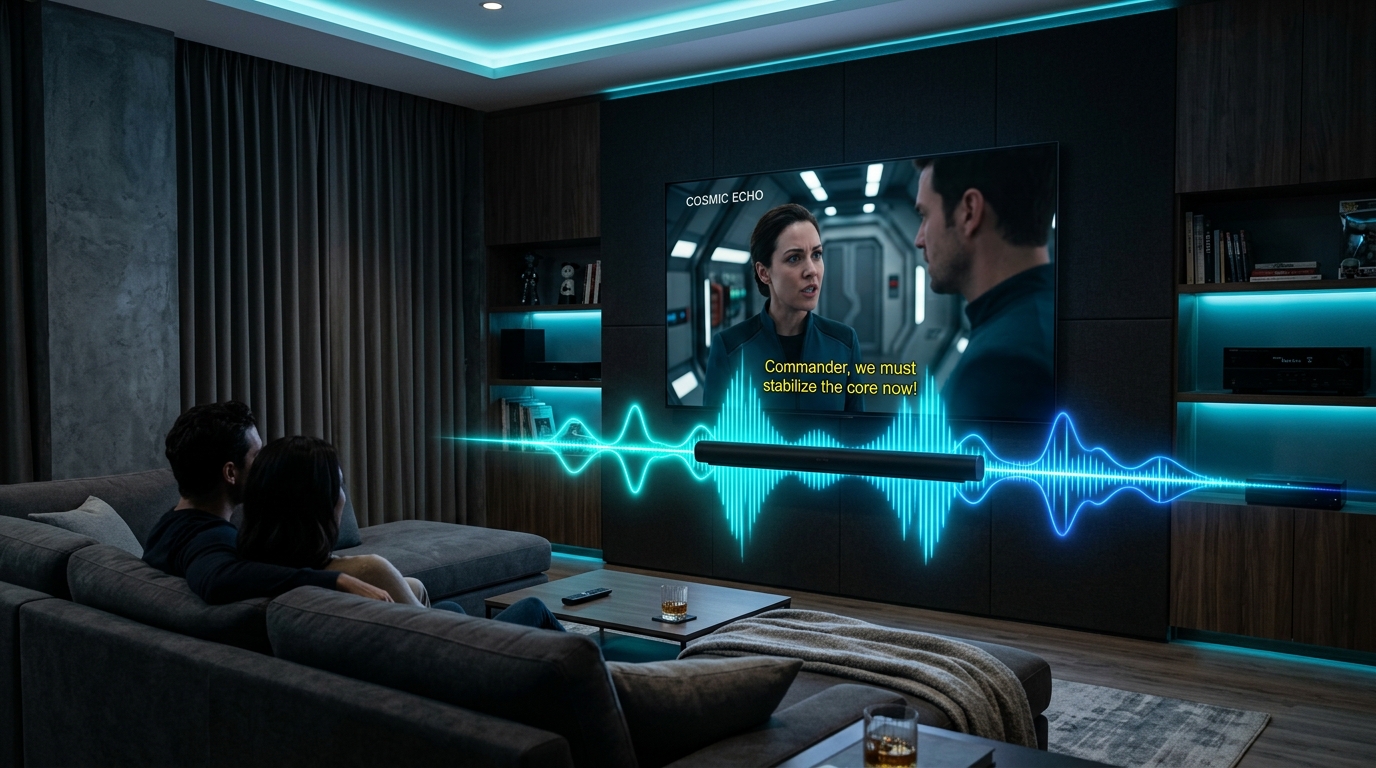
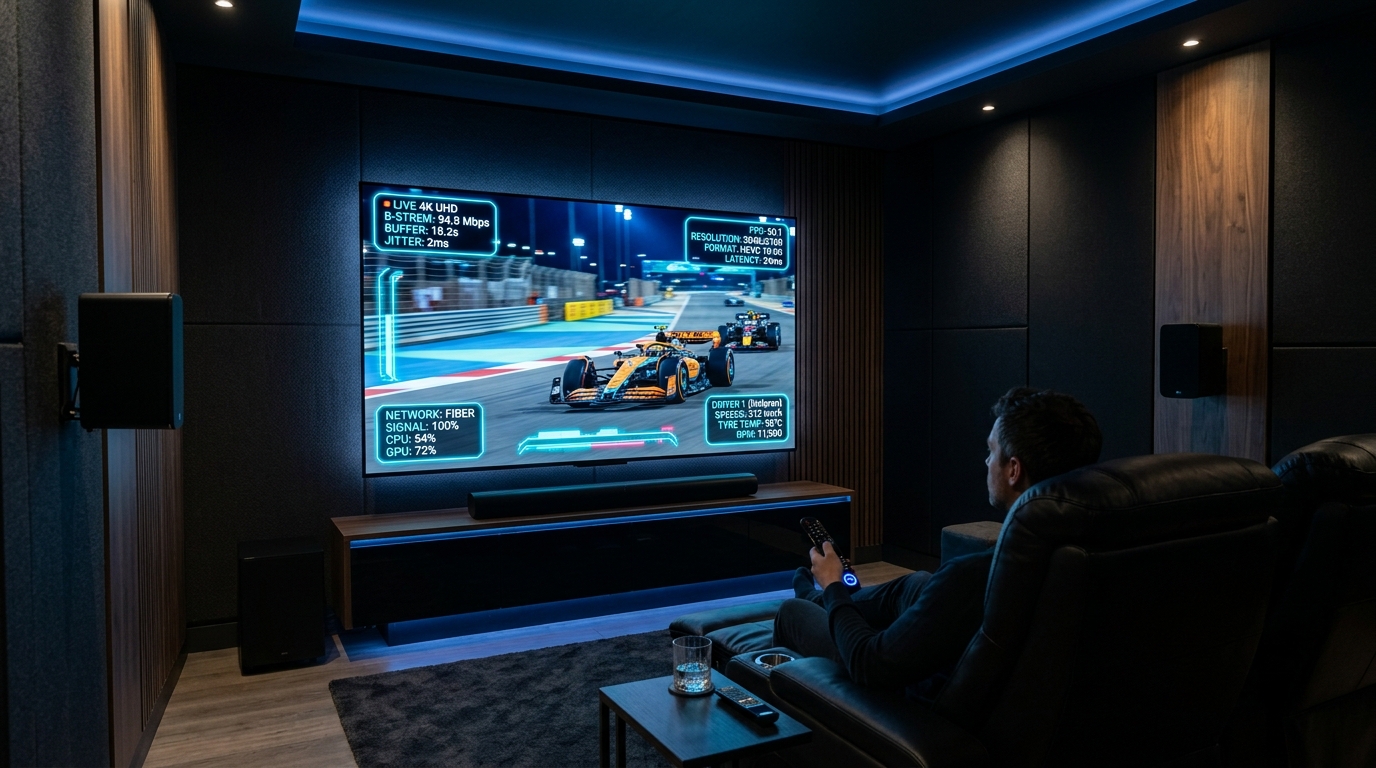
Few digital streaming flaws degrade entertainment more abruptly than audio that fails to align with on-screen video. Whether observing dramatic dialogue in a 4K film or following rapid live athletic action on TereaTV's sports channels, even a minor 80-millisecond discrepancy between an actor's mouth movements and the accompanying voice shatters immersion. During live football, hearing the sound of a ball striking the goalpost before the striker's foot visibly connects robs the broadcast of excitement and introduces severe viewing fatigue.
Audio desynchronization—professionally termed AV lip-sync error or elementary stream drift—is a multifaceted engineering anomaly. It can originate upstream during broadcaster transport-stream multiplexing, emerge within local media player decoding engines, or develop across external soundbars, Audio/Video Receivers (AVRs), and wireless Bluetooth peripherals.
Because audio and video travel as independent data streams before being synchronized by your playback hardware, resolving lip-sync errors requires a structured diagnostic protocol. This comprehensive engineering guide deconstructs the mechanics of AV synchronization, provides step-by-step offset calibration workflows for all leading IPTV players, and delivers permanent solutions for television HDMI eARC and soundbar latency.
1. The Mechanics of Audio/Video Desynchronization
To correct synchronization errors systematically, one must understand how digital television streams package sound and vision. Digital television broadcasts do not transmit video and audio as a single consolidated analog wave. Instead, they operate as a composite container stream known as an MPEG Transport Stream (MPEG-TS).
MPEG TRANSPORT STREAM (MPEG-TS) MULTIPLEXING:
[Video Camera] ──> [Video Encoder (H.265)] ──> [Video Elementary Stream (PES)] ──┐
                                                                                  ├──> [Multiplexer] ──> [MPEG-TS Stream]
[Microphone]   ──> [Audio Encoder (AC-3)]  ──> [Audio Elementary Stream (PES)] ──┘             │
                                                                                               ▼
                                                                                   [PTS & DTS Timestamps Embedded]
Elementary Streams, Packetized Headers, and Timestamps
Within an MPEG Transport Stream, video frames and audio samples are chopped into individual Packetized Elementary Stream (PES) packets:
- Video Elementary Stream (VES): Carries compressed video frame data (I-frames, P-frames, B-frames).
- Audio Elementary Stream (AES): Carries compressed audio sample frames (e.g., Dolby Digital AC-3 or AAC audio chunks).
- Program Clock Reference (PCR): Transmits high-precision clock reference ticks across the network to keep sender and receiver hardware oscillators locked in absolute phase.
- Presentation Time Stamps (PTS): Embedded within every packet header, the PTS specifies the exact microsecond timestamp at which that specific audio frame or video frame must be rendered by the display hardware.
- Decoding Time Stamps (DTS): Dictates when complex video frames (like bi-directional B-frames) must be pre-decompressed by the graphics processor prior to presentation.
When an IPTV media player functions flawlessly, its internal demuxer reads the incoming transport stream, separates the audio and video packets, sends each to its respective silicon decoder, and releases the decoded frames to the HDMI interface at the precise microsecond specified by matching Presentation Time Stamps.
The Physics of Lip-Sync Latency: Audio Ahead vs. Audio Behind
Desynchronization manifests in two distinct mathematical profiles:
PROFILE A: AUDIO AHEAD OF VIDEO (Negative Delay)
Audio Spoken: [WORD] ────────────────────────────> Heard Instantly (0ms)
Video Rendered:                      [MOUTH OPENS] (Delayed by 120ms due to heavy TV processing)
Visual Result: You hear the sentence completed before the actor's lips move!

PROFILE B: AUDIO BEHIND VIDEO (Positive Delay)
Video Rendered: [MOUTH OPENS] ───────────────────> Seen Instantly (0ms)
Audio Spoken:                        [WORD] (Delayed by 150ms due to external soundbar latency)
Visual Result: The actor speaks, and sound lags behind like an old dubbed movie!
- Audio Leading Video (Negative Latency): This is the most prevalent synchronization defect on modern Smart TVs. Compressed audio bitstreams are computationally lightweight; a Dolby Digital 5.1 track requires only a few hundred kilobits per second and decompressing it takes less than 5 milliseconds of silicon processing time. Conversely, a high-bitrate 4K 60FPS video stream represents a massive computing workload. If your television engages complex post-processing filters (such as dynamic contrast, motion smoothing, or spatial noise reduction), video frames are delayed inside the TV's image buffer for 80 to 140 milliseconds. The sound plays immediately through your soundbar, resulting in audio leading video.
- Audio Lagging Behind Video (Positive Latency): In this scenario, video renders on screen before the sound wave reaches your ears. This defect typically emerges when streaming audio is routed across slow wireless Bluetooth connections, through misconfigured optical Toslink cables, or into external soundbars that perform excessive internal acoustic surround virtualization.
Psychoacoustic Thresholds of Human Perception
Extensive auditory engineering studies conducted by the International Telecommunication Union (ITU-R BT.1359) define the strict physiological boundaries of human lip-sync detection:
| Synchronization State | Timing Discrepancy (Milliseconds) | Human Perceptual Impact |
|---|---|---|
| Imperceptible Zone | -20ms to +40ms | Below human detection threshold; experienced as instantaneous |
| Noticeable Threshold | -45ms to +90ms | Discerning viewers sense subtle timing weirdness |
| Unacceptable Degradation | Greater than -60ms (Audio Ahead) | Severe psychological irritation; viewer cannot focus on dialogue |
| Unacceptable Degradation | Greater than +120ms (Audio Behind) | Obvious foreign dubbing effect; destroys live sports realism |
Because the human brain naturally tolerates audio that lags slightly behind video (in nature, light travels faster than sound, so distant acoustic events naturally arrive after their visual cues), audio lagging by 40ms feels natural. However, the human brain has zero tolerance for audio arriving before visual movement, as this physical phenomenon never occurs in natural reality. Consequently, audio leading video produces instant distraction.
2. Diagnostic Triaging: Isolating Source vs. Local Hardware
Before adjusting calibration sliders, execute this rapid diagnostic workflow to isolate exactly where the timing discrepancy originates:
DIAGNOSTIC PROTOCOL:
                     [Audio Desync Detected]
                               │
            ┌──────────────────┴──────────────────┐
            ▼                                     ▼
 [Single Channel Exhibits Lag]        [Universal Across ALL Channels]
            │                                     │
   Upstream Source Error:               Local Environment Fault:
   - Broadcaster Mux Flaw               - TV Picture Processing Delay
   - Report to TereaTV Support          - HDMI ARC Timing Mismatch
   - Switch to Backup Feed              - Bluetooth Audio Buffer Lag
                                        - Player Decoder Engine Drift
Step 1: The Cross-Category Isolation Test
- Switch Between Multiple Channels: Move from the desynchronized stream to three unrelated channels across different categories—for example, a live news broadcast, a cinema channel, and a documentary feed on our channel catalog.
- Evaluate the Outcome:
- Scenario A (Single Channel Issue): If only one specific channel exhibits audio delay while all other channels maintain perfect synchronization, the fault is an upstream broadcast uplink anomaly. The local television broadcaster has transmitted misaligned PTS timestamps. Report the channel to TereaTV's 24/7 technical desk and switch to the channel's backup feed in your playlist.
- Scenario B (Universal Issue): If every channel and VOD asset exhibits an identical audio lag, the problem resides inside your local hardware: streaming stick decoders, television picture processing latency, or audio peripheral handshakes.
Step 2: The Native TV Speaker Test
To determine whether an external soundbar or Audio/Video Receiver (AVR) is introducing latency:
- Disconnect your soundbar, AVR, or wireless headphones completely.
- Direct audio playback exclusively through your television's built-in internal speakers.
- If lip-sync alignment is restored instantly on the TV speakers, the desynchronization is caused by your external soundbar's digital processing delay or an HDMI ARC handshake timing mismatch.
3. Client Media Player Calibration & Millisecond Offset Tuning
The most direct and immediate remedy for audio desynchronization is utilizing the millisecond audio offset controls built into advanced IPTV media players. These controls allow you to delay or advance the audio track relative to the video frame clock.
TiviMate IPTV Player (Android TV / Fire OS)
TiviMate provides the most granular audio calibration engine in the digital television ecosystem, supporting both global offsets and per-channel adjustments:
TIVIMATE AUDIO OFFSET CONTROLS:
[Active Video Stream] ──> [Press Down Button] ──> [Select Audio Options]
                                                           │
                                                           ▼
                                            [Audio Delay Calibration Slider]
                                       ◄── (-25ms Increments) | (+25ms Increments) ──►
                                                           │
                                                           ▼
                             [Toggle: "Apply to This Channel" OR "Apply to All Channels"]
- During active channel playback, press the Down or Center button on your remote control to bring up the playback HUD menu.
- Navigate rightward to the Audio settings icon (represented by an audio equalizer or sound wave).
- Select Audio Delay.
- A horizontal millisecond calibration slider will appear on screen:
- If audio is heard BEFORE lips move: Move the slider to the Right (e.g.,
+100ms,+150ms,+200ms) to delay the audio. - If audio is heard AFTER lips move: Move the slider to the Left (e.g.,
-100ms,-150ms,-200ms) to advance the audio track.
- If audio is heard BEFORE lips move: Move the slider to the Right (e.g.,
- Adjust in precise 25-millisecond increments while observing actor lip movements or referee whistles on TereaTV's sports streams.
- Setting Global vs. Local Defaults:
- Once dialogue syncs with microscopic precision, long-press the Apply to All Channels toggle if the offset was universal.
- Leave the toggle unchecked if you are correcting an isolated broadcaster offset specific to that single channel.
IPTV Smarters Pro & XCIPTV Player
- During full-screen playback, tap the screen or press the remote control's Menu button.
- Select the Audio Track or Settings icon.
- In the Audio Configuration menu, locate Audio Sync / Audio Delay.
- Adjust the delay slider until speech waveforms align naturally with video.
- In
General Settings->Player Selection, experiment with changing the default playback engine from Built-in Player to VLC Player or ExoPlayer. ExoPlayer utilizes modern Android MediaCodec hardware pipelines that maintain tighter timestamp synchronization than legacy software engines.
Apple TV 4K (iPlayTV, Snappier IPTV, TiviMax)
Apple TV runs tvOS, which enforces strict hardware audio rendering pipelines:
- Open your chosen IPTV application on Apple TV.
- In the player settings, navigate to
Audio Engineand select Apple Native (AVPlayer) rather than custom FFmpeg software decoders. - If using an external soundbar via HDMI eARC, utilize tvOS's automated Wireless Audio Sync calibration tool (detailed in Section 5).
4. Hardware Audio Decoders vs. Software Decoding Engines
Within media player settings menus, users frequently encounter toggles between Hardware Audio Decoding, Software Audio Decoding, and Audio Passthrough. Selecting the wrong engine introduces severe latency or muted channels.
AUDIO ENGINE COMPARISON:
Hardware Audio Decoding (HW):
[Compressed Stream] ──> [Device Silicon Audio Coprocessor] ──> [Decoded PCM] ──> [TV] (Ultra-Low Latency: <2ms)

Software Audio Decoding (SW):
[Compressed Stream] ──> [CPU Software Math Engine] ──────────> [Decoded PCM] ──> [TV] (High Latency: 40-100ms drift)

Audio Passthrough (Bitstream / Raw):
[Compressed AC-3/EAC3] ──(Untouched over HDMI eARC)──> [External AVR/Soundbar Decodes] (Near-Zero Latency)
- Hardware Audio Decoding (HW): Directs compressed audio elementary streams directly into your streaming device's dedicated silicon audio DSP (Digital Signal Processor). This process decodes multi-channel streams in under 2 milliseconds, guaranteeing that audio frames release in lockstep with video frames. Hardware decoding should remain your standard baseline configuration.
- Software Audio Decoding (SW): Bypasses silicon hardware, forcing the CPU to run software decompression libraries (such as libavcodec). On resource-constrained streaming dongles, CPU scheduling conflicts introduce variable 40ms to 120ms processing buffers, causing audio to gradually drift out of sync over extended viewing sessions.
- Audio Passthrough (Bitstream / Direct): Completely bypasses local streaming stick processing. The raw, untouched compressed audio bitstream (Dolby Digital AC-3, Dolby Digital Plus E-AC-3, or DTS) is piped directly over an HDMI high-speed cable to your external soundbar or Audio/Video Receiver (AVR). The soundbar's dedicated audiophile hardware handles digital-to-analog conversion. This configuration eliminates decoding delays on your streaming stick and delivers true 5.1 and 7.1 surround sound.
5. Television & External Audio System Configuration
Modern home theater configurations frequently route digital video and audio across multiple physical hardware bridges: from a streaming stick into a television, and then out of the television into an external soundbar via HDMI ARC or Optical Toslink. Each physical connection represents an opportunity for synchronization failure.
MODERN HOME THEATER ARCHITECTURE:
[Streaming Stick] ═══(HDMI Input 1)═══> [Smart TV Panel]
                                              │
                                   [HDMI eARC Port (Port 2)]
                                              │
                                              ▼
                                 [High-End Atmos Soundbar]
Method 1: Tame HDMI eARC Lip-Sync Handshake Protocols
High-Definition Multimedia Interface (HDMI) includes specialized bidirectional communication protocols designed to manage audio:
- HDMI ARC (Audio Return Channel): Introduced with HDMI 1.4, ARC possesses limited bandwidth (roughly 1 Mbps). It supports compressed stereo and lossy 5.1 Dolby Digital, but lacks mandatory automated lip-sync timing compensation protocols.
- HDMI eARC (Enhanced Audio Return Channel): Introduced with HDMI 2.1, eARC increases bandwidth to 37 Mbps, supporting uncompressed Dolby TrueHD, Dolby Atmos, and 24-bit multi-channel audio. Critically, eARC mandates Automated Lip-Sync Correction—a hardware protocol where the television continuously reports its internal video processing delay to the soundbar, instructing the soundbar to adjust its internal audio buffer automatically.
Actionable Calibration Steps:
- Verify that your high-speed HDMI cable connects your television's dedicated eARC port (typically HDMI 2 or HDMI 3) directly to the soundbar's eARC input.
- In your television's Audio Settings menu, ensure the HDMI audio output mode is configured to eARC (not legacy ARC).
- Set the digital audio output format to Passthrough or Bitstream (never select "Auto" or "PCM Stereo" if you utilize a multi-channel soundbar).
Method 2: Eliminate Optical Toslink Audio Processing Delays
Optical (S/PDIF Toslink) fiber cables transmit digital audio signals using pulsed light. While optical cables are immune to electromagnetic radio interference, the Toslink standard was finalized in the 1980s.
Toslink cables possess zero bidirectional communication capabilities. The television cannot talk to the soundbar, and the soundbar cannot know how many milliseconds of video processing delay the television's display panel is applying.
If your sound system relies on Optical Toslink:
- Transition immediately to HDMI eARC if your soundbar and television support it.
- If optical cabling is unavoidable, navigate to your television's
Sound->Expert Settings->Digital Output Audio Delayslider and manually introduce between 40ms and 80ms of delay to align with television display rendering times.
Method 3: Disable Television Virtual Acoustic Enhancements
Just as television picture processing smudges video, built-in television acoustic enhancements distort sound timing:
- Auto Volume Leveling / Night Mode: Compresses audio dynamic range by continuously calculating moving sound envelopes, adding computational latency.
- Virtual Surround / 3D Sound Expansion: Applies acoustic filtering to synthesize spatial surround sound from two physical stereo speakers. These digital algorithms introduce between 30ms and 60ms of digital latency.
- Actionable Step: Disable all synthetic audio processing in your television settings. Set sound profile to Standard, Direct, or Pure Audio.
6. Wireless Audio Latency: Taming Bluetooth Desynchronization
Streaming television over wireless Bluetooth headphones or portable speakers is notorious for severe audio lag. Bluetooth is a radio protocol originally engineered for low-bandwidth voice telephony and file transfers, not real-time synchronized video playback.
BLUETOOTH AUDIO LATENCY COMPARED:
Standard SBC Codec:       [220ms Delay] ───────────────> (Completely Unwatchable!)
Standard AAC Codec:       [160ms Delay] ─────────────> (Noticeably Out of Sync!)
aptX Codec:               [100ms Delay] ───────────> (Borderline for Live TV)
aptX Low Latency (aptX-LL): [32ms Delay] ───> (PERFECT SYNCHRONIZATION!)
2.4 GHz RF USB Headset:   [15ms Delay] ─> (Broadcast Studio Precision!)
Bluetooth Codecs and Their Timing Realities
- SBC (Low-Complexity Subband Codec): The mandatory baseline codec supported by all Bluetooth hardware. SBC introduces between 180ms and 250ms of audio latency. Streaming live sports with standard SBC Bluetooth makes dialogue look completely detached from lip movement.
- AAC (Advanced Audio Coding): Standard on Apple devices. While offering excellent acoustic fidelity, AAC latency averages 140ms to 180ms on Android and Fire OS devices, which exceeds psychoacoustic tolerance.
- aptX Low Latency (aptX-LL) & aptX Adaptive: Qualcomm's specialized low-latency codecs reduce transmission latency down to 30 to 40 milliseconds, falling comfortably below human perception thresholds.
- Actionable Solutions for Wireless Viewing:
- Utilize Dedicated 2.4 GHz RF Headsets: For late-night live sports viewing, bypass Bluetooth entirely. Purchase wireless home theater headphones that utilize a dedicated 2.4 GHz RF USB transmitter dongle. RF dongles connect directly into your streaming box's USB port, transmitting uncompressed audio with sub-15ms latency.
- Apply Fixed Bluetooth Offsets in Player: If standard Bluetooth headphones are your only option, open TiviMate or IPTV Smarters Pro and apply a permanent -180ms to -220ms audio offset. By advancing the audio bitstream by the exact duration of your Bluetooth radio latency, you achieve perfect lip-sync precision.
Apple TV Wireless Audio Sync Protocol
If you utilize an Apple TV 4K paired with Apple HomePods or AirPods, tvOS features a calibration system that uses your iPhone's physical microphone to measure living room audio acoustics:
- Connect your Apple TV to your television via HDMI.
- Ensure your iPhone is connected to the identical Wi-Fi network.
- On your Apple TV, navigate to
Settings->Video and Audio->Wireless Audio Sync. - Hold your iPhone close to your television screen as prompted.
- The Apple TV will emit a sequence of acoustic tone bursts through your speakers. The iPhone's microphone measures the exact microsecond delay between the video flash and the sound wave's arrival, writing a custom hardware compensation profile to the Apple TV's system kernel.
7. Audio Codec & Hardware Compatibility Matrix
Broadcasters across our international channel bouquets encode audio tracks utilizing diverse technical formats. Use this engineering compatibility matrix to ensure your playback setup supports native decoding:
| Audio Codec | Compression Profile | Typical Bitrate | Channel Layout | Hardware Licensing / Compatibility | Primary Broadcast Use Case |
|---|---|---|---|---|---|
| MPEG-1 Audio Layer II (MP2) | Lossy Subband | 128 – 256 kbps | Stereo (2.0) | Universal legacy silicon support | Classic European PAL SD & HD channels |
| Advanced Audio Coding (AAC) | Low Complexity (LC) | 96 – 192 kbps | Stereo (2.0) / 5.1 | Universal modern hardware support | Global streaming channels, mobile feeds |
| Dolby Digital (AC-3) | Transform Bitstream | 384 – 640 kbps | Discrete 5.1 Surround | Supported across virtually all TV/AVRs | North American & UK HD sports & cinema |
| Dolby Digital Plus (E-AC-3) | Enhanced Transform | 448 – 768 kbps | Up to 7.1 + Atmos | Requires modern HDMI eARC / AVR | 4K Ultra HD broadcasts & premium VOD |
| DTS Digital Surround | Coherent Acoustics | 754 – 1509 kbps | Discrete 5.1 Surround | Requires dedicated DTS licensed hardware | High-bitrate cinema & action films |
| Linear PCM | Uncompressed Raw | 1.5 – 4.6 Mbps | Stereo or 5.1/7.1 | Decoded internally; universal HDMI | Studio master audio & passthrough mode |
8. Device-Specific Diagnostic Walkthroughs
Apply these tailored diagnostic procedures across specific client hardware platforms:
Amazon Fire TV Stick 4K & Fire TV Cube
- Open the Fire OS
Settingsmenu. - Select
Display & Sounds->Audio->Surround Sound. - Switch the output format from Best Available to PCM (if using basic TV speakers) or Dolby Digital Plus (if connected to an external AVR soundbar).
- Navigate to
Display & Sounds->Audio->AV Sync Tuning. - Observe the bouncing ball visualizer and adjust the slider until the acoustic chime sounds at the exact moment the bouncing ball contacts the virtual floor.
Nvidia Shield TV Pro & Android TV Boxes
- Open Android TV
Settings->Device Preferences->Display & Sound->Advanced sound settings. - Under Available formats, select Auto or manually enable Dolby Digital (AC3) and Dolby Digital Plus (E-AC3).
- If using an external soundbar, locate Match content audio resolution and toggle it ON.
- In TiviMate, under
Playback->Audio decoder, verify that Hardware decoding is active. - If experiencing persistent frame sync discrepancies on high-bitrate feeds, access
Special featuresand enableAudio night modeor disable raw USB audio routing if conflicting audio peripherals are connected.
Formuler Z11 Pro Max & MYTVOnline3
- Open the MYTVOnline3 application interface.
- Press the Menu button on the dedicated Formuler IR/Bluetooth remote.
- Navigate to
Settings->Audio & Video. - Under
Audio Output Mode, switch fromLPCMto RAW (Passthrough) if connected to a dedicated Dolby soundbar via HDMI eARC. - In the advanced audio synchronization menu, Formuler provides a real-time microsecond offset wheel. Adjust the wheel in 10ms intervals until the sports commentary perfectly tracks on-field athletic action.
Dedicated Audio/Video Receivers (Denon, Marantz, Yamaha, Onkyo)
- For multi-channel home theater setups where streaming devices plug directly into an AVR before reaching the television:
- Ensure your AVR's HDMI input port supports Auto Lip Sync (HDMI 2.0 / 2.1 standard).
- Navigate to the AVR's setup menu ->
Audio->Audio DelayorLip Sync. - If your AVR features Auto Lip Sync, toggle it ON. This allows the receiver to interrogate the connected television's EDID handshake and automatically apply the display panel's measured latency.
- If manual calibration is required, play a dialogue-rich film scene and calibrate the receiver's global master delay (typically between 40ms and 120ms depending on television display processing overhead).
Smart TVs (Samsung Tizen OS & LG webOS)
- Samsung Tizen: Navigate to
Settings->Sound->Expert Settings.- Set HDMI-eARC Mode to Auto.
- Set Digital Output Audio Format to Pass-Through (or Bitstream).
- Adjust Digital Output Audio Delay if audio precedes video.
- LG webOS: Navigate to
Settings->Sound->Sound Out.- Select Use Wired Speaker -> HDMI (ARC) Device.
- Under
Advanced Settings, locate Digital Sound Output and change it fromAutoto Pass Through. - Ensure Match Screen and Sound is toggled to Bypass to disable internal television audio buffers.
9. Frequently Asked Questions (FAQ)
Why does audio desynchronization worsen the longer I watch a stream?
Gradual audio drift over extended viewing sessions is almost always symptomatic of system clock drift caused by software decoding. When a media player utilizes a software decoding engine, minor timing variations between the hardware audio clock and the video rendering clock accumulate over time. After two hours of continuous viewing, a 2-millisecond per-minute variance compounds into a noticeable 240-millisecond lag. Switching your media player's audio decoder to Hardware (HW) or Audio Passthrough eliminates clock drift permanently by locking audio frame release to the hardware silicon clock.
Why do sports channels exhibit audio delay while movies on the same subscription play in perfect sync?
Sports channels and film broadcasts utilize entirely different production workflows. Cinematic movies are pre-recorded assets where audio and video elementary streams are mastered with frame-perfect precision in post-production. Live sports broadcasts are captured, compressed, and multiplexed on-the-fly in mobile broadcast trucks at the stadium. Occasionally, an international broadcaster's uplink encoder introduces a minor 100ms offset before transmitting the signal to satellite downlinks. Using TiviMate's per-channel audio offset slider allows you to correct the broadcaster's uplink anomaly without affecting your globally synchronized movie channels.
Does using a VPN cause audio to fall out of sync?
No. A Virtual Private Network (VPN) operates exclusively at the transport layer of the OSI network model. A VPN encrypts and routes entire data packets containing both video and audio. While a slow VPN can introduce overall buffering or connection timeouts if bandwidth drops, it cannot alter the internal timing relationship between audio and video elementary streams within an MPEG transport container. If audio is out of sync, the issue resides in local media player decoders, television display latency, or broadcaster encoding timestamps—never in VPN encryption.
Why does my soundbar play sound with zero lag, but my Bluetooth headphones lag by half a second?
An external soundbar connected via high-speed HDMI eARC receives digital audio bitstreams over physical copper wiring with near-zero latency (under 2 milliseconds). Standard Bluetooth headphones transmit compressed audio over 2.4 GHz radio frequencies using high-latency codecs like SBC or AAC. These codecs compress, buffer, transmit, and re-decode sound in software, introducing between 150ms and 250ms of physical transmission delay. To achieve synchronization on wireless headphones, you must either utilize headphones featuring aptX Low Latency (aptX-LL) hardware or apply a compensating negative delay inside your IPTV media player.
What should I do if an audio track produces no sound at all on certain 4K streams?
When a 4K broadcast outputs pristine video but completely silent audio, the underlying cause is an unsupported audio codec license on your playback device. Premium 4K broadcasts frequently transmit audio in Dolby Digital Plus (E-AC-3) with Dolby Atmos or DTS-HD Master Audio. If an entry-level streaming stick or generic media player lacks hardware licensing for multi-channel AC-3/E-AC-3 decoding, the player drops the unreadable audio track. To fix this, access your media player's audio track selection menu and switch from the primary 5.1 stream to a secondary stereo AAC track, or enable software audio decoding specifically for that codec format.
Can an outdated HDMI cable cause audio delay?
Yes. Older legacy HDMI cables manufactured to HDMI 1.3 or 1.4 specifications lack the physical shielding and high-speed data lanes required to transmit high-bandwidth 4K 60FPS video alongside modern HDMI eARC bidirectional audio control signals. When bandwidth saturates on an inadequate cable, transmission errors force the television and soundbar to repeatedly renegotiate HDMI handshake protocols, introducing fluctuating audio delay and periodic micro-dropouts. Always connect modern 4K home theater components using certified Ultra High Speed HDMI 2.1 cables rated for 48 Gbps throughput.
10. Conclusion: Precision AV Synchronization with TereaTV
Audio desynchronization can turn the most exciting live sports match or dramatic film into a frustrating viewing experience. Yet, as demonstrated throughout this technical guide, lip-sync latency is a measurable, solvable engineering challenge.
By identifying whether audio is ahead of or behind video, disabling counterproductive television acoustic and motion filters, setting media players to native hardware decoding, matching HDMI eARC handshakes, and mastering millisecond audio delay sliders, you achieve broadcast-studio synchronization precision across every device in your home.
When your local audio playback pipeline is calibrated to perfection, pairing it with an enterprise-grade broadcast infrastructure guarantees uncompromised entertainment. TereaTV's global streaming service delivers pristine multi-channel audio—from crystal-clear stereo dialogue to uncompressed 5.1 Dolby Digital surround sound—multiplexed to rigid broadcast standards across 50,000 live channels and 200,000 on-demand titles. Explore our subscription packages today, or connect with our 24/7 technical team for personalized home theater calibration assistance.