What Internet Speed Do You Actually Need for IPTV? 4K Bandwidth & Stability Guide
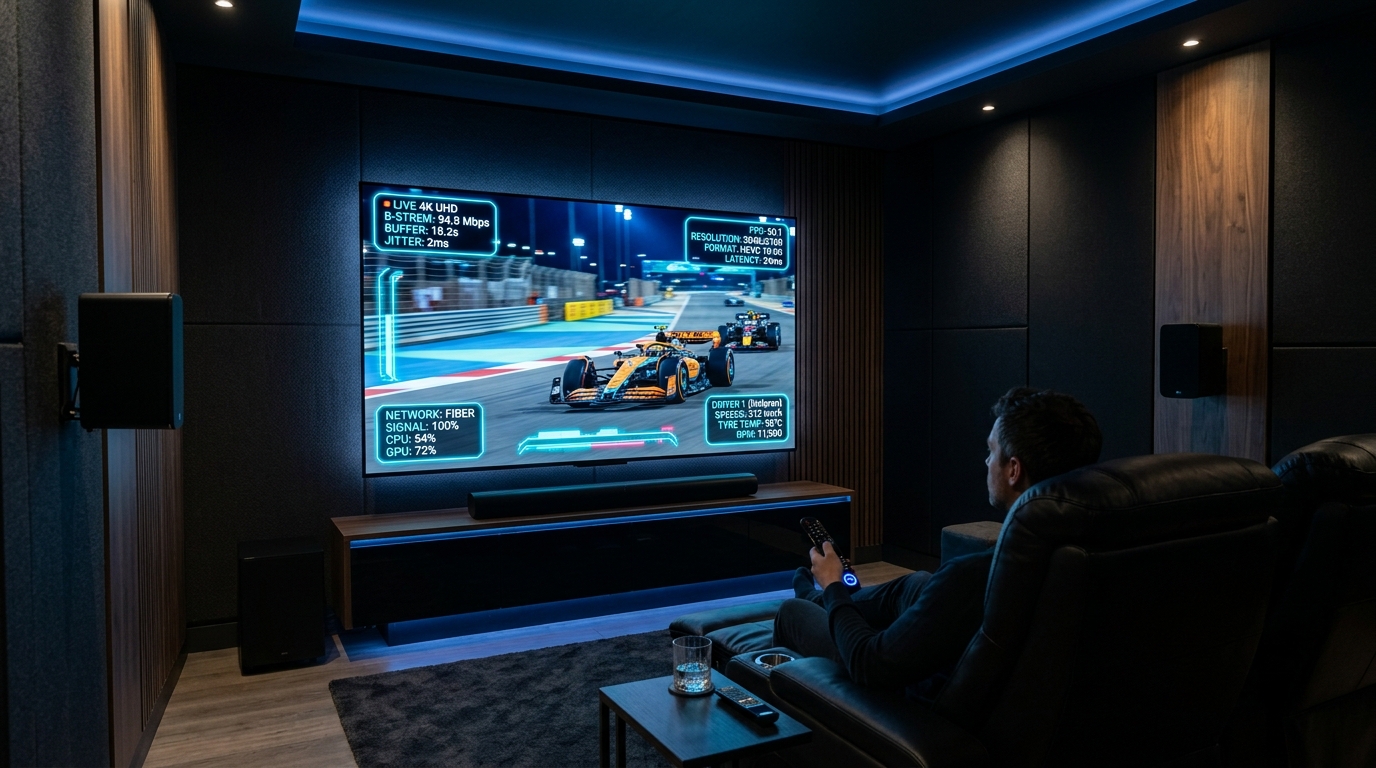
When subscribing to an advanced digital television streaming service like TereaTV, one of the most critical questions asked by prospective subscribers is straightforward: How fast does my internet connection actually need to be to stream live sports and movies in 4K without buffering?
Internet Service Providers frequently market hyper-fast gigabit connections—advertising 1,000 Mbps, 2,000 Mbps, or higher—leaving consumers with the impression that smooth television streaming requires an industrial-grade enterprise broadband pipe. Conversely, budget streaming sellers often make reckless claims that a modest 10 Mbps connection is sufficient to run 4K live television across multiple household screens.
Both extremes are factually misleading. In digital broadcasting, headline bandwidth (Mbps) is only one component of a three-dimensional networking equation. While an uncompressed live 4K 60FPS sports stream requires between 25 and 40 Mbps of dedicated throughput, maintaining continuous, buffer-free playback depends far more heavily on transmission continuity, microscopic packet jitter, zero packet loss, and low loaded latency (bufferbloat).
Whether you reside in a single-person apartment with a single streaming stick or manage a bustling household with four simultaneous 4K televisions, this comprehensive engineering guide provides accurate mathematical formulas, bitrate requirement tables, protocol analysis, and real-world testing methodologies to help you determine your exact broadband requirements.
1. The Bandwidth Paradox: Why Speedtest Megabits Are Deceptive
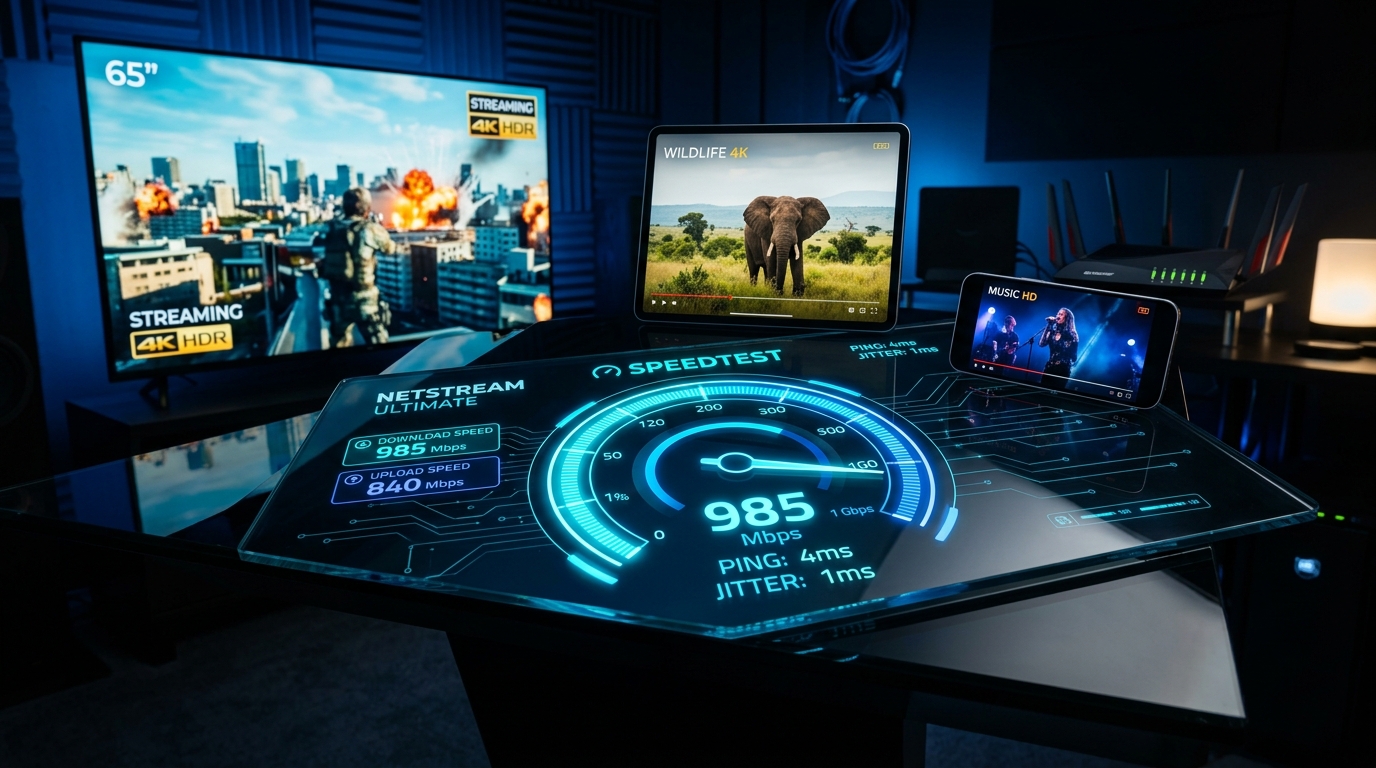
To calculate required internet speeds accurately, you must first dismantle the illusion of consumer speed tests. When a user runs a test on Speedtest.net and receives a result of "400 Mbps," they understandably assume their connection has ample headroom to stream a 25 Mbps video feed. Yet thirty minutes later, during an important football match, their stream freezes and spins.
BURST BANDWIDTH (Web Browsing / File Downloads):
Throughput:  ▲▲▲▲▲▲▲▲▲▲▲▲ (Surges to 400 Mbps for 10 seconds, then goes idle)
Packets:     Allows retries, retransmissions, variable delays. Zero impact on user!

CONTINUOUS STREAMING (Live 4K 60FPS IPTV):
Throughput:  ──────────── (Continuous, steady 30 Mbps stream, 60 times per second)
Packets:     Zero tolerance for jitter or packet drop. A 50ms hiccup empties the buffer!
Burst Throughput vs. Continuous Streaming
Standard web activities—such as downloading software updates, loading web pages, or backing up smartphone photos—operate via burst data transfers. The application opens multiple parallel TCP sockets, pushes maximum data across the line for a few seconds, and tolerates variable packet arrival times. If a packet is dropped, the TCP protocol quietly requests retransmission while you read the web page; you never notice the 200-millisecond delay.
Live Internet Protocol Television operates under entirely opposing physics:
- Real-Time Video Delivery: Live television is broadcast linearly in real time. The video stream cannot be downloaded hours in advance. Frames are captured, encoded, and transmitted with sub-second latencies.
- Single-Threaded Pipelining: Most media players stream video over a single sustained TCP or UDP connection. A single-threaded stream cannot take advantage of multi-socket burst aggregation.
- The Micro-Jitter Trap: A connection with 500 Mbps of burst bandwidth but suffering from 18 milliseconds of jitter and 1.5 percent packet loss will constantly freeze during a live 25 Mbps 4K broadcast. In contrast, a stable 50 Mbps connection boasting sub-2ms jitter and 0.0 percent packet loss will stream flawless 4K 60FPS sports for eighteen consecutive hours without a single dropped frame.
Constant Bitrate (CBR) vs. Variable Bitrate (VBR) & Peak Sports Surges
Digital television bitstreams are packaged in two distinct compression modes:
- Constant Bitrate (CBR): The encoder outputs a rigid, fixed data rate regardless of visual complexity. While predictable for network planning, CBR either wastes bandwidth during static scenes or produces visual macro-blocking during complex action.
- Variable Bitrate (VBR): The modern broadcast standard. The encoder continuously analyzes scene complexity. During a quiet dialogue scene with two actors sitting in a room, the bitrate drops to a modest 8 Mbps.
However, during high-speed athletic broadcasts on TereaTV's live sports channels—such as a Premier League football match, Formula 1 race, or NFL game—the visual entropy explodes:
- Sixty completely unique full-frame images are transmitted every second.
- Thousands of dynamic cheering spectators in stadium crowds, rapid camera sweeps across detailed grass textures, and fast-moving balls prevent spatial compression algorithms from recycling visual data.
- Peak Surge Bitrates: A 4K 60FPS feed with an average bitrate of 25 Mbps will routinely surge to 38 to 48 Mbps in fractions of a second during intense athletic moments. If your broadband line lacks the dedicated overhead to absorb these instantaneous bitrate surges, your player's buffer empties instantly, triggering a freeze at the most exciting moment of the match.
2. Bandwidth Requirements by Resolution & Framerate Profile
Different video resolution profiles require varying amounts of continuous bandwidth. The following engineering benchmark illustrates native broadcast bitrates alongside the recommended dedicated bandwidth required for flawless playback across TereaTV's streaming ecosystem:
BANDWIDTH REQUIREMENTS PER SINGLE STREAM:
Standard Definition (576i / 480p):     [=== 3 Mbps Dedicated ===]
High Definition (720p 60FPS):         [====== 8 Mbps Dedicated ======]
Full High Definition (1080p 30FPS):   [========= 12 Mbps Dedicated =========]
Full HD High-Framerate Sports (60FPS): [============== 18 Mbps Dedicated ==============]
4K Ultra HD Movies (24FPS):           [==================== 25 Mbps Dedicated ====================]
4K Ultra HD Live Sports (60FPS HDR):  [============================== 40 Mbps Dedicated ==============================]
| Resolution Profile | Pixel Dimensions | Native Framerate | Compression Codec | Native Broadcast Bitrate | Recommended Dedicated Bandwidth | Minimum Stable Speedtest Requirement |
|---|---|---|---|---|---|---|
| Standard Definition (SD) | 720×576 (PAL) / 720×480 | 25 / 30 FPS | H.264 (MPEG-4) | 1.2 – 2.0 Mbps | 3.0 Mbps | 10.0 Mbps |
| High Definition (HD) | 1280×720 | 50 / 60 FPS | H.264 / H.265 | 3.5 – 5.0 Mbps | 8.0 Mbps | 20.0 Mbps |
| Full HD Entertainment (FHD) | 1920×1080 | 25 / 30 FPS | H.264 / H.265 | 4.5 – 7.5 Mbps | 12.0 Mbps | 25.0 Mbps |
| Full HD Live Sports (FHD) | 1920×1080 | 50 / 60 FPS | H.265 (HEVC) | 8.0 – 14.0 Mbps | 18.0 Mbps | 35.0 Mbps |
| 4K Ultra HD Cinema (UHD) | 3840×2160 | 23.976 / 24 FPS | H.265 / AV1 | 14.0 – 22.0 Mbps | 25.0 Mbps | 50.0 Mbps |
| 4K Ultra HD Live Sports | 3840×2160 | 50 / 60 FPS | H.265 (Main 10) | 22.0 – 35.0 Mbps | 40.0 Mbps | 70.0 Mbps |
Analyzing the Engineering Data:
- The 60 FPS Premium: Notice the dramatic jump between 1080p Entertainment (30 FPS) and 1080p Sports (60 FPS). Transmitting sixty full progressive frames every second doubles the data throughput requirements. Never evaluate sports streaming requirements using standard on-demand movie metrics.
- The 35–40% Headroom Multiplier: Notice that the "Recommended Dedicated Bandwidth" is roughly 35 to 40 percent higher than the native stream bitrate. This buffer headroom is mandatory to absorb TCP window acknowledgments, packet header overhead, and momentary VBR bitrate spikes without stalling playback.
- The Speedtest Buffer: The "Minimum Stable Speedtest" column accounts for real-world domestic line fluctuations, wireless interference, and ISP peering variations during peak evening hours.
3. The Multi-Device Household Bandwidth Calculation Formula
Most modern households do not stream television in isolation. While you stream a 4K Premier League football match in the living room, a family member may be watching a Full HD movie in the bedroom, a teenager may be gaming online or downloading console updates, and dozens of background smart home devices continuously transmit telemetry.
HOUSEHOLD BANDWIDTH FORMULA:
Total Required Bandwidth = [∑ (Stream Bitrates × 1.4 Headroom)] + [Gaming / VoIP Overhead] + [Background Activity (30%)]
Step-by-Step Household Sizing Workflow
To calculate the exact broadband tier your household requires:
- Calculate Simultaneous Video Stream Requirements: Multiply each planned concurrent television stream by its dedicated bandwidth requirement:
- Living Room (4K 60FPS Sports Stream): 40 Mbps
- Master Bedroom (1080p 60FPS Sports Stream): 18 Mbps
- Kids' Bedroom (1080p HD Entertainment Stream): 12 Mbps
- Mobile Tablet Stream: 8 Mbps
- Subtotal Video Demand: 78 Mbps
- Factor in Concurrent Household Data Activities:
- Online Competitive Gaming (Low bandwidth, but demands zero latency): 10 Mbps
- Video Conferencing (Zoom / Microsoft Teams): 15 Mbps
- General Web Browsing, Social Media, and Music: 15 Mbps
- Subtotal Other Activities: 40 Mbps
- Apply the 30% Headroom and Bufferbloat Cushion:
- Raw Total:
78 Mbps + 40 Mbps = 118 Mbps - Multiply by 1.3 to ensure your network operates below the 80% saturation threshold where router bufferbloat occurs:
118 Mbps × 1.3 = 153.4 Mbps
- Raw Total:
- Engineering Recommendation: A household with this viewing profile requires a minimum certified 150 Mbps to 200 Mbps broadband connection to guarantee buffer-free entertainment during peak evening hours.
4. The Trinity of Network Stability: Latency, Jitter, and Packet Loss
When diagnosing streaming performance, network engineers prioritize three parameters far above raw download speeds:
THE TRINITY OF NETWORK METRICS:
1. LATENCY (RTT):   Round-trip time for a packet to reach server and return (Ideal: < 30ms)
2. JITTER:          Variation in latency across consecutive packets (CRITICAL: Must be < 3ms!)
3. PACKET LOSS:     Percentage of data packets destroyed in transit (MANDATORY: Must be 0.0%!)
Metric 1: Latency (Round-Trip Time / Ping)
Latency represents the elapsed time (in milliseconds) required for a data packet to travel from your streaming device to TereaTV's edge CDN server and return.
- Under 25ms (Excellent): Instantaneous channel switching, near-zero handshake delay, optimal TCP throughput.
- 30ms to 70ms (Acceptable): Standard residential broadband latency. No impact on video playback once stream initializes.
- Above 120ms (Poor): Sluggish channel zapping, delayed EPG population, potential TCP handshake timeouts.
Metric 2: Jitter (Packet Arrival Variance)
Jitter is the mathematical variance in packet transit times. If Packet 1 arrives in 20ms, Packet 2 arrives in 22ms, and Packet 3 arrives in 65ms, your network exhibits severe jitter.
- Why Jitter Destroys Live Video: Video decoders expect packets to arrive at a steady, rhythmic cadence matching frame presentation clocks. When packets bunch up and arrive erratically, the media player's circular memory buffer drains to empty during the arrival gaps.
- Maximum Tolerable Jitter for 4K IPTV: Network jitter must remain strictly below 4 milliseconds. Jitter exceeding 10 milliseconds universally produces micro-stutters and audio dropouts on live 60 FPS sports broadcasts.
Metric 3: Packet Loss (The Digital Guillotine)
Packet loss occurs when network routers drop data packets due to physical line damage, Wi-Fi radio interference, or congested ISP peering exchanges.
- The Zero-Tolerance Reality: In web browsing, lost packets are retransmitted seamlessly. In live television streaming, by the time a lost packet is detected, requested, and retransmitted across the internet, the video frame it belongs to has already passed. The player must either discard the frame (causing a visual glitch/macro-block) or pause playback to re-fill its buffer.
- Threshold: A packet loss rate of just 1.0 percent renders 4K IPTV virtually unwatchable. To maintain broadcast-grade stability, packet loss must register at 0.0 percent.
5. Bufferbloat: Why a 1-Gigabit Connection Still Freezes
One of the most perplexing paradoxes encountered by streamers is suffering from severe buffering while paying for a premium 1,000 Mbps fiber connection. The root cause is almost always Bufferbloat.
HOW BUFFERBLOAT OCCURS:
[Router Hardware Buffers] <=== (Unmanaged FIFO Queue Fills with Large File Chunks)
                                        │
                                        ▼
[Incoming Live IPTV Video Packets Wait in Queue for 500ms!]
                                        │
                                        ▼
[Media Player Buffer Empties ──> STREAM FREEZES AND BUFFERS!]
The Mechanics of Router Buffer Saturation
Broadband routers are manufactured with physical memory chips that buffer data packets during bursts of network activity. However, unmanaged consumer routers implement simple First-In, First-Out (FIFO) queuing.
When another device on your home network uploads a high-resolution video to social media, backs up files to cloud storage, or downloads a large game patch, the router's internal queue fills to capacity. Incoming live IPTV video packets are trapped behind thousands of bulk data packets, artificially inflating network ping from a crisp 15ms to an unwatchable 400ms to 900ms.
The media player's internal memory buffer drains completely while waiting for trapped packets, and the stream abruptly freezes—despite 900 Mbps of unused bandwidth!
Mitigating Bufferbloat via Smart Queue Management (SQM)
To eliminate bufferbloat permanently:
- Execute a Bufferbloat Audit: Navigate to the Waveform Bufferbloat Test on a computer connected to your home network.
- Access Router Administration: Log into your router gateway (typically
192.168.1.1or192.168.0.1). - Enable Smart Queue Management (SQM): Locate your router's traffic management tab and activate SQM utilizing the CAKE (Common Applications Kept Enhanced) or fq_codel (Fair Queuing Controlled Delay) algorithm.
- Set Throughput Ceilings: Configure the SQM download and upload limits to approximately 90 to 93 percent of your certified speed. This small 7 percent bandwidth ceiling guarantees that your router's hardware buffers never fill, keeping round-trip latency locked under 10 milliseconds regardless of heavy domestic downloads.
6. TCP Congestion Control Algorithms on Streaming Servers
The technical quality of an IPTV service is dictated not only by the client's domestic broadband line, but by the congestion control algorithms deployed on the provider's broadcast streaming servers.
CONGESTION CONTROL ALGORITHM COMPARISON:
Legacy Cubic / Reno:
[Throughput]  /|  /|  /|  (Waits for packet loss, then cuts throughput by 50%! Buffer stalls!)
              |/  |/  |/

Google BBR (TereaTV Infrastructure):
[Throughput]  ─────────── (Continuously calculates Bottleneck Bandwidth & RTT. Maximum Speed Maintained!)
Legacy Algorithms: Reno and Cubic
Historically, web servers utilized loss-based congestion control algorithms like TCP Reno or TCP Cubic. These algorithms operate under a primitive assumption: they increase data transmission speeds until a packet is dropped by an intermediate network router.
Upon detecting packet loss, Cubic interprets the drop as severe network congestion and instantly slashes transmission throughput by 50 percent. For live video streaming, this sudden bandwidth halving starves client player buffers, inducing instantaneous buffering on connections experiencing minor, harmless packet jitter.
The Google BBR (Bottleneck Bandwidth and RTT) Advantage on TereaTV
To solve this inherent flaw, Google networking engineers developed BBR (Bottleneck Bandwidth and RTT). BBR fundamentally reimagines congestion control:
- Model-Based Optimization: BBR does not wait for packet loss to measure network capacity. Instead, it continuously builds a mathematical model of the network pipeline, measuring actual packet delivery rates and round-trip propagation times.
- Immunity to Minor Packet Drop: Under BBR, a 1 percent random packet drop on a domestic Wi-Fi connection does not cause the server to slash streaming bandwidth. The server maintains maximum transmission speed, routing data seamlessly around transient bottlenecks.
- Enterprise Architecture: TereaTV's streaming server infrastructure deploys optimized BBR congestion control across all global edge nodes, ensuring subscribers extract the maximum possible video quality and stability from their domestic internet connections.
7. How to Accurately Test Your IPTV Streaming Speed
Standard web browser speed tests are designed to deliver flattering numbers; they connect to the geographically closest ISP test server located just a few miles away. This test measures domestic local loop speed, not your international streaming pathway to television broadcast servers.
LOCAL SPEED TEST (Misleading):
[Your Device] ══════════(3 Miles / Domestic ISP Hub)══════════> [Local ISP Test Server]
Result: 500 Mbps, 4ms Ping  <-- "My internet is perfect!" (False sense of security)

REAL STREAMING PATHWAY (Actual Delivery):
[Your Device] ──> [Domestic ISP] ──> [Transit Peering Exchange] ──> [Global CDN Edge Server]
Result: 22 Mbps, 45ms Ping, 1.8% Packet Loss  <-- (Why your stream actually buffers!)
Protocol 1: Fast.com with Loaded Latency Testing
Operated by Netflix, Fast.com utilizes real-world content delivery network (CDN) server clusters rather than synthetic ISP speed test nodes:
- Open Fast.com on your streaming device's web browser.
- Allow the initial speed test to conclude.
- Click Show more info.
- Examine the Loaded Latency metric:
- Unloaded Latency: Your baseline ping when network is idle (should be < 20ms).
- Loaded Latency: Your ping while the connection is actively downloading and uploading data. If loaded latency surges above 80 milliseconds, your router suffers from bufferbloat, which will cause streams to buffer whenever someone else uses the internet.
Protocol 2: In-App Diagnostics (TiviMate & Analiti)
The most accurate method to measure real-world streaming throughput is running network diagnostics directly inside your TV operating system:
- Analiti Speed Test (Android TV / Fire OS): Install the Analiti network testing suite from the Google Play Store or Amazon Appstore. Analiti runs single-threaded and multi-threaded throughput tests, measures continuous packet jitter, and identifies Wi-Fi signal attenuation.
- In-Player Telemetry in TiviMate: While streaming a channel on TereaTV, bring up the on-screen display, navigate to stream details, and observe real-time bitrate metrics. Verify that incoming bitrate comfortably exceeds the channel's native encoding profile.
8. Physical Connection Overhead: Wi-Fi vs. Ethernet Realities
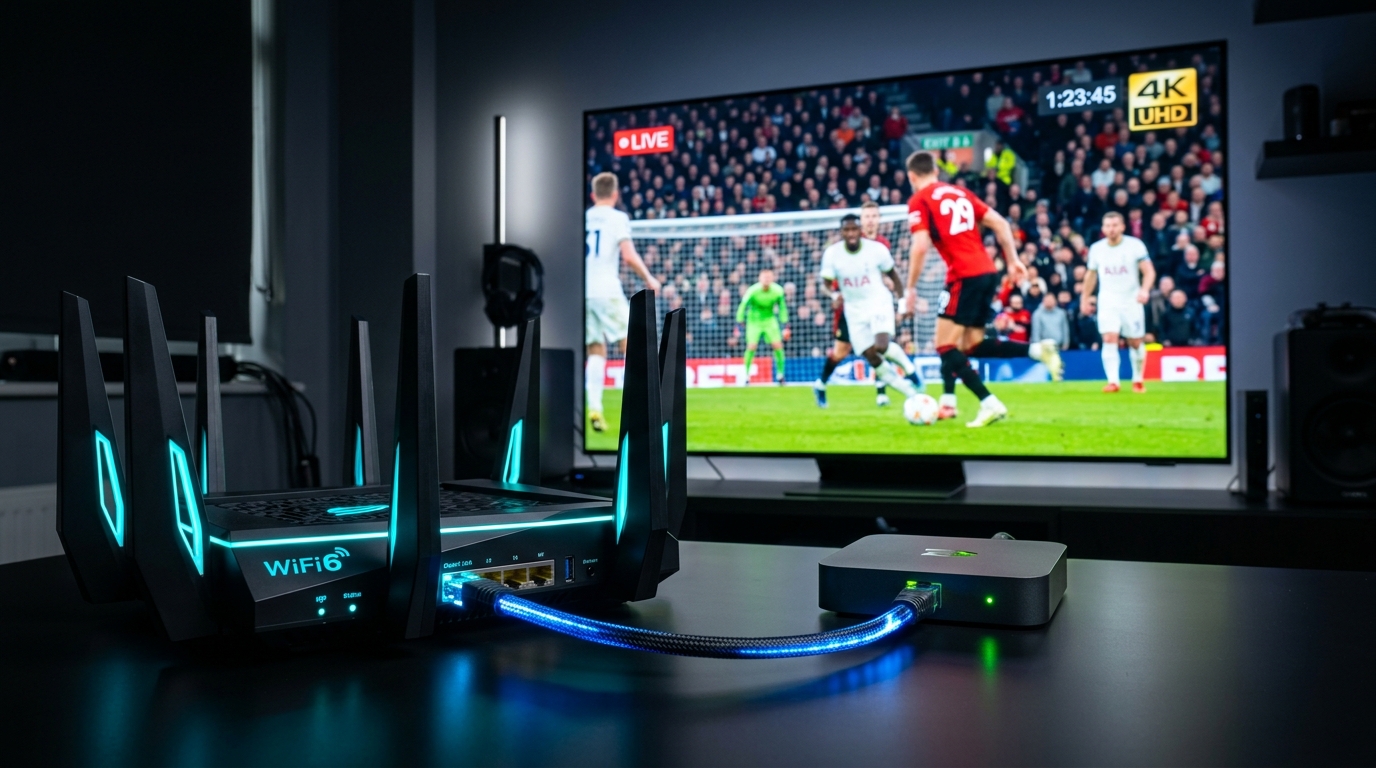
A 100 Mbps internet package delivered over a physical Cat6 Ethernet cable will universally deliver superior IPTV streaming stability compared to a 1,000 Mbps gigabit fiber package connected over 2.4 GHz Wi-Fi.
CONNECTION COMPARISON:
Feature                     Cat6 Ethernet               5 GHz Wi-Fi 6              2.4 GHz Wi-Fi (Legacy)
Duplex Mode                 Full-Duplex (1000 Mbps)     Half-Duplex (Shared)       Half-Duplex (Severe Contention)
Radio Interference          Zero (Shielded Copper)      Low (Within 15 Feet)       Severe (Microwaves/Bluetooth)
Packet Jitter               < 1.0 Millisecond           3 – 8 Milliseconds         15 – 35 Milliseconds
Packet Loss Rate            0.0% Absolute Zero          0.1% – 0.5%                1.0% – 3.5% (High Drop Rate)
IPTV 4K Streaming Grade     A+ (Flawless Stability)     B+ (Acceptable Near Base)  F (Constant Freezing & Stutter)
The Frequency Band Breakdown:
- 2.4 GHz Wi-Fi: Offers long physical range through walls, but operates on crowded spectrum shared with Bluetooth devices, baby monitors, and microwave ovens. Real-world throughput rarely exceeds 40 Mbps, with packet jitter frequently spiking past 25 milliseconds. 2.4 GHz Wi-Fi is wholly unsuitable for reliable 4K IPTV sports streaming.
- 5 GHz Wi-Fi (Wi-Fi 5 / Wi-Fi 6): Operates on wider channel widths (80 MHz or 160 MHz) with substantially less radio interference. Provides real-world throughput exceeding 300 Mbps within line-of-sight. However, 5 GHz signals attenuate rapidly through brick walls and solid concrete. If your streaming box is separated from your router by multiple walls, incoming signal drops, inducing packet loss.
- Cat6 Ethernet: The gold standard of broadcasting. Bypasses wireless airtime contention entirely, delivering zero packet loss, sub-millisecond jitter, and maximum stability for uninterrupted 4K entertainment.
9. Contention Ratios & Evening ISP Bandwidth Throttling
Many broadband consumers notice that streaming runs flawlessly at 10:00 AM on a Tuesday, but suffers from sudden stuttering and buffering at 8:30 PM on a Saturday during a major televised football fixture.
The Neighborhood Contention Ratio
Residential broadband is not a dedicated point-to-point line. ISPs connect residential neighborhoods to localized optical splitters or cable nodes utilizing shared contention ratios (typically ranging from 20:1 up to 50:1).
During peak evening viewing hours (7:00 PM to 11:00 PM), hundreds of neighboring households simultaneously stream 4K movies, play games, and download files. The local exchange node saturates, packet arrival times fluctuate, and available bandwidth drops significantly.
Bypassing Deep Packet Inspection (DPI) Throttling
To mitigate regional node congestion, major ISPs deploy automated Deep Packet Inspection tools that single out IPTV video streaming protocols and artificially throttle connection speeds.
Connecting your streaming device through an encrypted WireGuard VPN tunnel wraps your stream inside opaque cryptographic envelopes. The ISP's automated congestion management appliances cannot identify the video streaming signatures, preventing targeted bandwidth throttling and restoring full broadcast bitrates.
10. Household Bandwidth Requirements Matrix (1 to 5 Devices)
Use this engineering sizing guide to match your household's active device count to the appropriate broadband tier:
| Active Household Profile | Simultaneous Streams & Activities | Minimum Dedicated Video Speed | Recommended ISP Broadband Tier | Optimal Connection Medium |
|---|---|---|---|---|
| Solo Viewer (Studio) | 1× 4K 60FPS TV + 1× Smartphone browsing | 40 Mbps | 50 – 75 Mbps | 5 GHz Wi-Fi or Cat6 Ethernet |
| Couple (Apartment) | 1× 4K Sports TV + 1× 1080p FHD Movie + Web | 55 Mbps | 100 – 150 Mbps | Primary TV on Cat6 Ethernet |
| Family (3-4 People) | 2× 4K 60FPS TVs + 1× FHD TV + 1× Gaming PC | 100 Mbps | 200 – 300 Mbps | Both 4K TVs on Cat6 Ethernet; SQM on Router |
| Large Family (5+ People) | 3× 4K TVs + 2× Tablets + Work-from-Home Calls | 145 Mbps | 400 – 500 Mbps | All TVs hardwired; Dedicated Wi-Fi 6 Mesh |
| Power Enthusiast / Multi-Room | 4× 4K 60FPS TVs + Cloud Backups + 4K Security Cams | 190 Mbps | 500 – 1,000 Mbps (Gigabit) | Managed Gigabit Switch; SQM CAKE; Cat6/Cat7 |
11. Frequently Asked Questions (FAQ)
Can I stream 4K IPTV on a 25 Mbps broadband connection?
Technically, yes—for a single screen—provided that your 25 Mbps connection operates with absolute stability, sub-3ms jitter, and zero packet loss, and no other person or smart device in your home touches the internet while you watch. However, in practical residential environments, running a 22 Mbps 4K video stream over a 25 Mbps internet package leaves zero headroom for momentary VBR bitrate surges or background device telemetry. A brief cloud backup or smartphone message sync will instantly tip the connection into buffer underrun. We recommend a certified 50 Mbps connection as the realistic minimum baseline for reliable single-screen 4K streaming.
Why does my speed test report 300 Mbps, but my IPTV stream stutters?
Because a speed test measures peak burst throughput over short multi-socket downloads, whereas IPTV requires sustained single-threaded transmission continuity. If your connection exhibits high packet jitter, intermittent packet drop (>0.5%), severe router bufferbloat, or ISP video packet throttling, your media player's RAM buffer will run dry, causing the stream to freeze despite abundant unused megabits. Transitioning your streaming device from Wi-Fi to a hardwired Cat6 Ethernet cable and testing with an encrypted WireGuard VPN addresses the underlying cause of this issue.
How much internet data does streaming IPTV consume per hour?
Data consumption depends directly on the video stream's resolution and native bitrate:
- Standard Definition (SD): ~0.8 to 1.2 Gigabytes per hour
- Full HD Entertainment (1080p 30FPS): ~2.5 to 3.5 Gigabytes per hour
- Full HD Live Sports (1080p 60FPS): ~4.5 to 6.5 Gigabytes per hour
- 4K Ultra HD Live Sports (2160p 60FPS): ~10.0 to 16.0 Gigabytes per hour If your domestic broadband package is subject to a monthly data cap (such as a 1 Terabyte limit enforced by certain cable providers), streaming several hours of 4K sports daily will consume substantial data. Ensure your broadband subscription includes unlimited data transfer.
Does upload speed affect IPTV streaming?
Upload speed plays a secondary but vital role. While you are downloading video frames, your media player must continuously transmit microscopic TCP ACK (Acknowledgment) packets back to the broadcast server to confirm that video packets arrived intact. If other household members saturate your connection's upload bandwidth (by uploading videos, backing up photos, or making video calls), outgoing TCP ACK packets are delayed in your router's upstream queue. The streaming server interprets missing ACKs as network failure and throttles video delivery. We recommend a minimum upload speed of 15 to 25 Mbps to ensure smooth bi-directional communication.
Can 5G Home Internet (Fixed Wireless Access) reliably replace fiber broadband for 4K IPTV?
Fixed Wireless Access (FWA) 5G home internet (such as services from T-Mobile, Verizon, or Three) delivers impressive peak download speeds (often exceeding 200 to 400 Mbps), but its reliability for live 4K IPTV streaming depends heavily on environmental radio physics. Unlike underground glass fiber optic cables that deliver immutable sub-2ms jitter and zero packet loss, 5G signals travel across the atmosphere. Cellular towers experience dynamic load fluctuations as commuters pass by, and radio waves are attenuated by precipitation and thermal atmospheric changes. During peak evening hours, 5G packet jitter can fluctuate between 8ms and 45ms, causing momentary buffer underruns on high-bitrate live sports. If you utilize 5G home internet, position your 5G gateway beside an exterior window with line-of-sight to the cell tower, connect your streaming box via physical Ethernet, and configure your IPTV player buffer size to Medium (3 to 4 seconds) to absorb wireless radio jitter.
How can I configure router Quality of Service (QoS) to prioritize television streaming over other devices?
If multiple household members share your internet connection, configuring Quality of Service (QoS) ensures your IPTV streaming box receives absolute bandwidth priority:
- Log into your router's gateway menu (
192.168.1.1). - Navigate to
DHCP Serverand assign a Static IP Reservation to your streaming device based on its hardware MAC address. - Open the router's
QoSorTraffic Prioritizationmenu. - Create a high-priority rule assigning your streaming device's IP address to Highest / Real-Time Priority.
- Assign bulk background devices (such as torrent clients, game consoles, and cloud backup systems) to Normal / Low Priority.
- This configuration guarantees that even if a computer initiates a massive 50-Gigabyte file download, your router reserves guaranteed throughput and ultra-low latency for your live television broadcast.
12. Conclusion: Unlocking Seamless Streaming with TereaTV
Evaluating internet speed for digital television requires looking past superficial broadband marketing claims. While raw megabits provide the pipe width, it is transmission consistency, microscopic jitter, zero packet loss, and disciplined router queue management that transform a stuttering video feed into a glass-smooth broadcast-quality visual experience.
Once your domestic broadband line is configured to engineering standards, pairing your network with an enterprise-tier streaming provider ensures you extract the full entertainment value your home theater was designed to deliver.
TereaTV's global streaming network is built on enterprise-grade infrastructure. Powered by multi-gigabit Tier-1 transit downlinks, Google BBR congestion control, distributed Anycast DNS routing, and high-capacity global CDN edge servers, TereaTV delivers over 50,000 live channels and 200,000 on-demand titles with rock-solid stability and zero artificial compression. Explore our flexible IPTV subscription plans today, browse our extensive channel lineup, or connect with our 24/7 technical support team for personalized bandwidth and home network setup guidance.